
User Management
Home / Documentation /
📦 Product Stock
🛒 Orders
💰 Sales
🛍️ Purchase
📊 RM Stock
📅 Attendance
💸 Expense
📑 Accounting
💳 Supplier Payment
📥 Customer Receive
👔 Payroll
🗑️ RM Waste
🗑️ Product Waste
📜 Quotations
📈 Reports
- Product Price History
- Raw Material Price History
- RM Purchase Report
- RM Item Wise Purchase Report
- RM Stock Report
- Supplier Due Report
- Supplier Balance Report
- Supplier Ledger
- Production Report
- Product Production Report
- Sale Report
- Item Wise Sale Report
- Customer Due Report
- Customer Ledger
- Profit & Loss Report
- Product Profit Report
- Attendance Report
- Expense Report
- Salary Report
- RM Waste Report
- Product Waste Report
- ABC Analysis Report
⚙️ Settings
💳 Credit
In this section you can manage the users of the system. You can add, edit, and delete users as needed. You can also assign roles and permissions to ensure proper access control. Additionally, you can monitor user activities and maintain security by managing login credentials and access levels.
Role Manage
In this section you can manage the Role. You can add, edit and delete the Role.
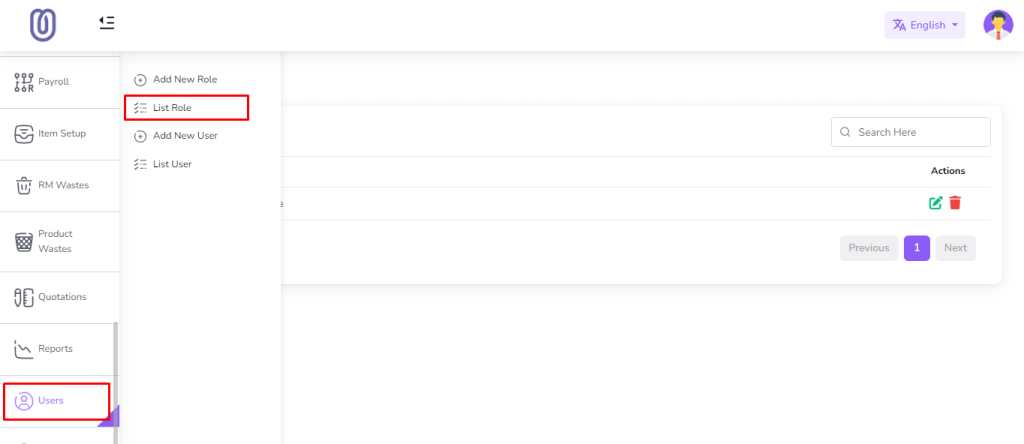
To access Role List, navigate to the “Users section and click on “Role List”.
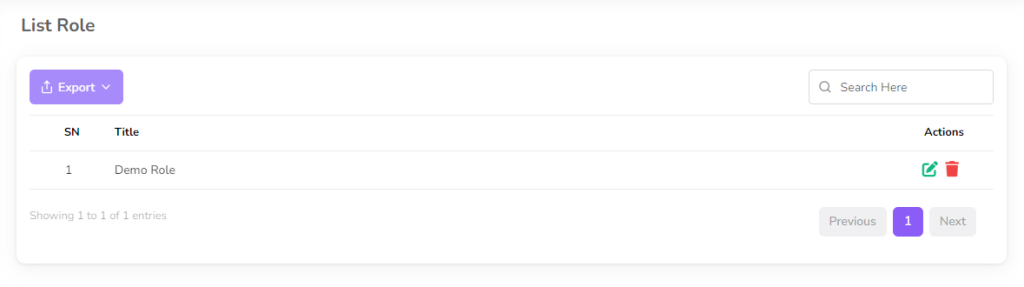
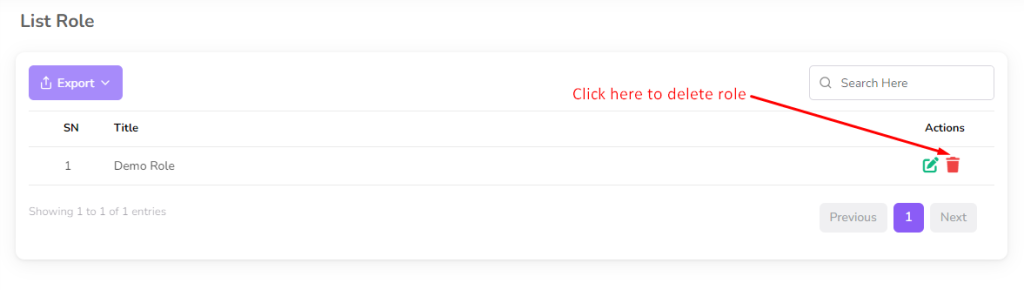
After clicking on “Role List” you can view the role list with role title;
To add a new role, click on the “Add New Role” from the sidebar menu.

Fill the role title, select the permission and click on the “Submit” button to save the changes.

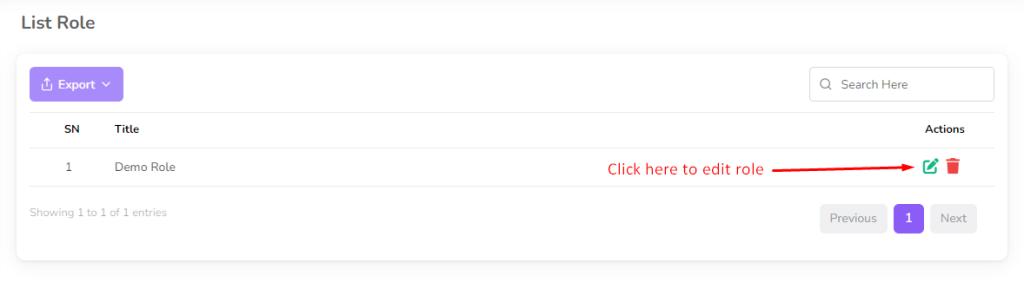
To edit the role, click on the “Edit” button from the role row.
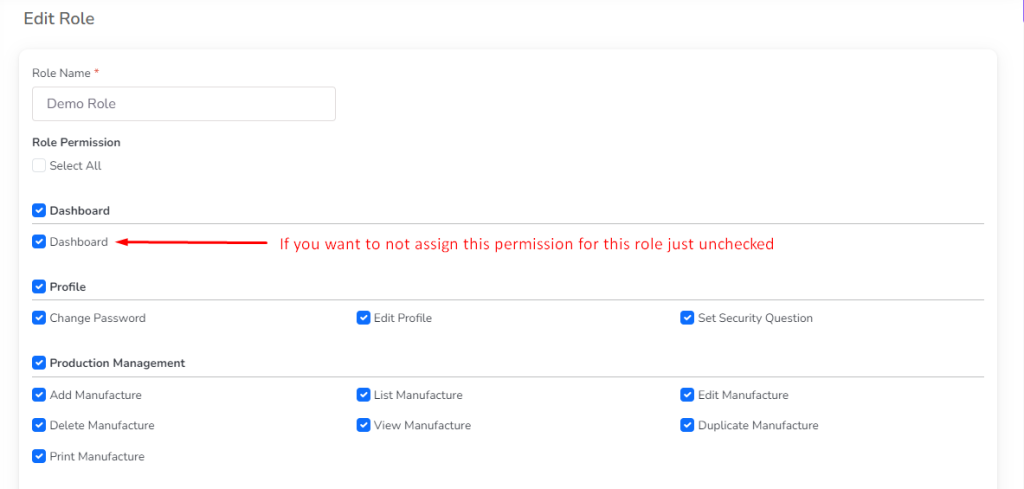
After clicking on the “Edit” button you can edit the role title, if need change the permission then select the permission and click on the “Submit” button to save the changes.
To delete the role, click on the “Delete” button from the role row.
User Management
In this section, you can manage the users of the system. You can add, edit, and delete users.
To access the User List, navigate to the “Users” section and click on “User List”.
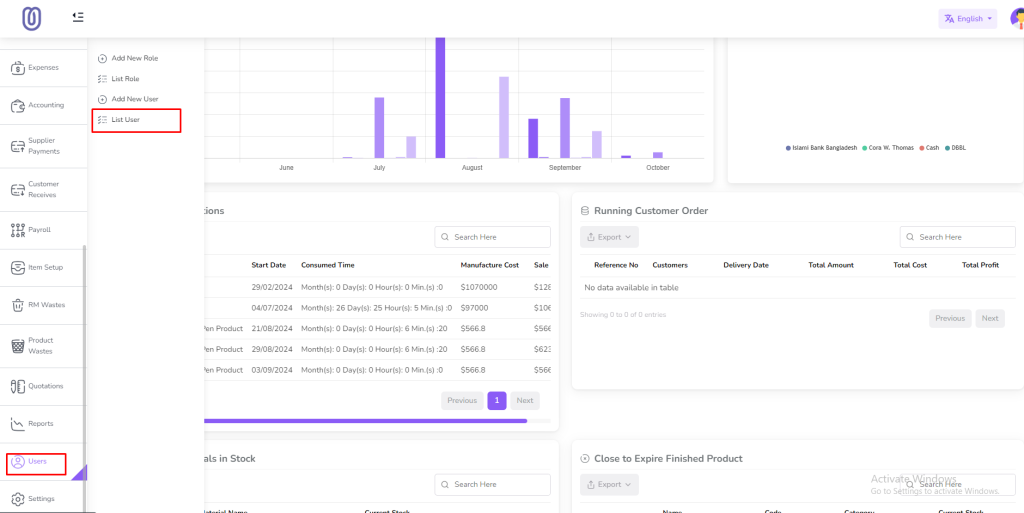
After clicking on “User List”, you can view the user list with user details

To add a new user, click on the “Add New User” from the sidebar menu.
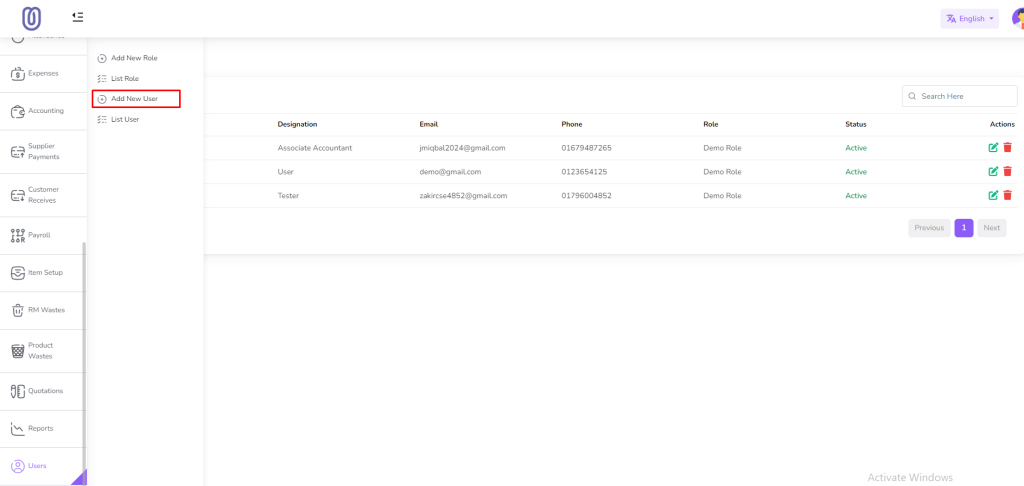
Fill the user details, select the role, and click on the “Submit” button to save the changes.

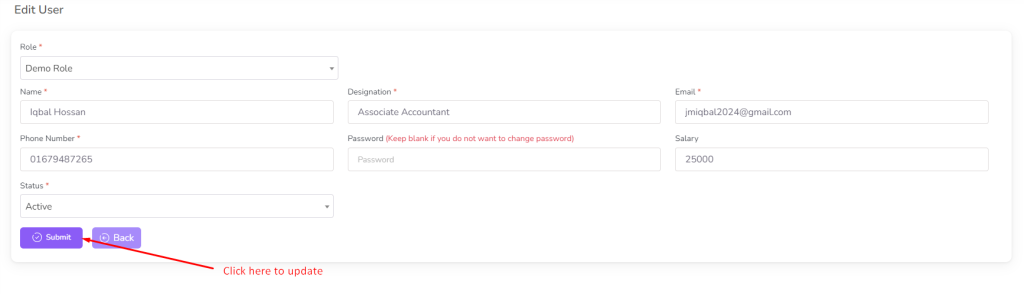
To edit the user, click on the “Edit” button from the user row.
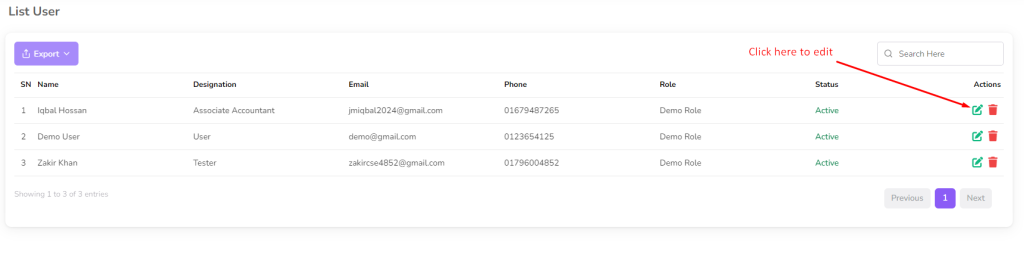
After clicking on the “Edit” button, you can edit the user details, if needed change the role then select the role and click on the “Submit” button to save the changes.
To delete the user, click on the “Delete” button from the user row.
