
Basics
Home / Documentation /
📦 Product Stock
🛒 Orders
💰 Sales
🛍️ Purchase
📊 RM Stock
📅 Attendance
💸 Expense
📑 Accounting
💳 Supplier Payment
📥 Customer Receive
👔 Payroll
🗑️ RM Waste
🗑️ Product Waste
📜 Quotations
📈 Reports
- Product Price History
- Raw Material Price History
- RM Purchase Report
- RM Item Wise Purchase Report
- RM Stock Report
- Supplier Due Report
- Supplier Balance Report
- Supplier Ledger
- Production Report
- Product Production Report
- Sale Report
- Item Wise Sale Report
- Customer Due Report
- Customer Ledger
- Profit & Loss Report
- Product Profit Report
- Attendance Report
- Expense Report
- Salary Report
- RM Waste Report
- Product Waste Report
- ABC Analysis Report
⚙️ Settings
💳 Credit
The Basic Info section provides essential information and instructions related to user authentication and account management within the software. Below, you will find details on default login credentials, changing passwords, and recovering forgotten passwords.
Default Login
Your default login credentials are:
Admin:
Email: admin@Finasal.com
Password: 123456
Change Profile
You can change your profile name, username, email, phone number, or photo.
Go to the User Profile section from the top right bar.
Click on “Change Profile” to update your information.

Enter your Name, Email, Phone, Username, and Profile Photo in the given fields.
After updating, the system will save your changes.
A confirmation message will appear: “Information has been updated successfully!”
Change Password
First, go to the User Profile section by clicking on the top right bar of your screen.
Select the “Change Password” option from the menu.
You will need to enter your current password and then type your new password.
Confirm the new password again and save the changes.
Once done, you’ll see a message confirming that your password has been successfully updated.

To change your password, first enter your old password in the given field to verify your identity. After that, type your new password and then re-enter the same password in the confirm password field to make sure there are no typing mistakes. Once all fields are filled correctly, click on the “Submit” button. Your password will then be updated successfully, and you will be able to use the new password for your next login.
Set Security Question
A security question helps you reset your password in case you forget it.
If you are a newly added user, you must set a security question for your account.
To set it, go to the User Profile section from the top right bar.
Click on the “Set Security Question” option.
Choose a question, provide your answer, and save it for future use.

To set up your security question, first click on the “Question” drop-down menu and select one of the available security questions from the list. After selecting a question, type your answer in the provided field carefully, as this answer will be required if you ever need to reset your password. Once you have entered the answer, click on the “Submit” button to save it. Your security question and answer will then be securely stored for future account recovery.
Forgot Password
If you forget your password, you can reset it without needing email verification.
The system will use the security question you had set earlier from the admin panel.
Go to the Login Page and click on the “Forgot Password?” link.
You will be asked to answer your security question correctly.
After verification, you can set a new password and save it for future logins.
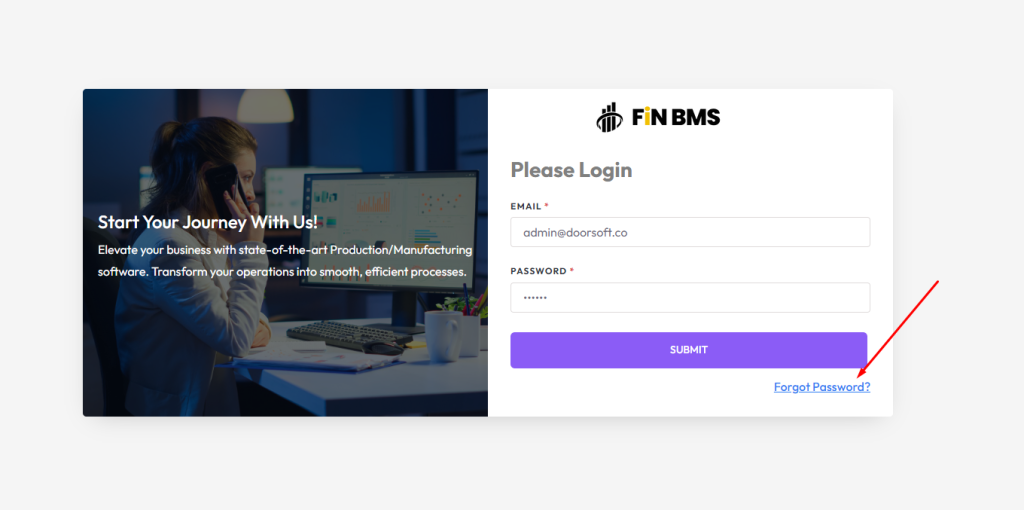
Step 1:
To begin the password reset process, you first need to enter your registered email address in the given field. This step ensures that the system can verify whether your email is already stored in the database. Once you type in your email, click on the “Submit” button. If the email is found in the system, you will be allowed to move on to the next step of the password recovery process.

Step 2:
If you provide a valid email address, the system will redirect you to the next step. In this step, you will see the security question that you had previously set during your profile setup. Carefully select the correct question from the list (if multiple are shown) and then type the exact answer that you had saved earlier. This step is important for verifying your identity and making sure only you can reset the password. After entering the correct answer, click on the “Submit” button. If both the question and answer match the saved details, the system will allow you to proceed to the final step of resetting your password.

Step 3:
In the final step, you will be asked to create a new password for your account. Type your new password in the “New Password” field, making sure it is strong and secure. Then, re-enter the same password in the “Confirm Password” field to avoid typing mistakes. This confirmation ensures both entries match. Once you have filled both fields correctly, click on the “SUBMIT” button. Your password will be successfully updated, and you can now log in to the system using your new password.

After submitting, the system confirms your password reset successfully.
You are then redirected to the login page automatically.
Log in with your new password to access your account.

To log in after resetting your password, go to the login page of the system. In the provided fields, first enter your registered email address that is linked to your account. Then, type the newly created password that you set during the password reset process. Make sure both the email and password are entered correctly. Finally, click on the “Login” button. If the details match, you will be successfully logged in to your account and redirected to your dashboard.