Parties
Home / Documentation /
📦 Product Stock
🛒 Orders
💰 Sales
🛍️ Purchase
📊 RM Stock
📅 Attendance
💸 Expense
📑 Accounting
💳 Supplier Payment
📥 Customer Receive
👔 Payroll
🗑️ RM Waste
🗑️ Product Waste
📜 Quotations
📈 Reports
- Product Price History
- Raw Material Price History
- RM Purchase Report
- RM Item Wise Purchase Report
- RM Stock Report
- Supplier Due Report
- Supplier Balance Report
- Supplier Ledger
- Production Report
- Product Production Report
- Sale Report
- Item Wise Sale Report
- Customer Due Report
- Customer Ledger
- Profit & Loss Report
- Product Profit Report
- Attendance Report
- Expense Report
- Salary Report
- RM Waste Report
- Product Waste Report
- ABC Analysis Report
⚙️ Settings
💳 Credit
In the Parties section, you can manage your customers, and suppliers. You can add, edit, and delete customer and suppliers.
Customer
To manage customers, navigate to the “Parties” section from the left sidebar. Here you can see two menu “Customer” and “Add Customer”
To add a new customer, click on the “Add Customer” menu.

Fill in the required customer details and click on the “Submit” button.
You need to select opening balance for the customer. Opening Balanc type is debit or credit. Debit Balance: Debit balance means you are giving some amount of money to the customer at the time of adding customer. Credit Balance: Credit balance means customer will give some amount of money to you at the time of adding customer.
Here Credit Limit is optional. If you enable credit limit then customer will not be allowed to exceed the credit limit.

After successfully adding a customer, the customer list will be updated.
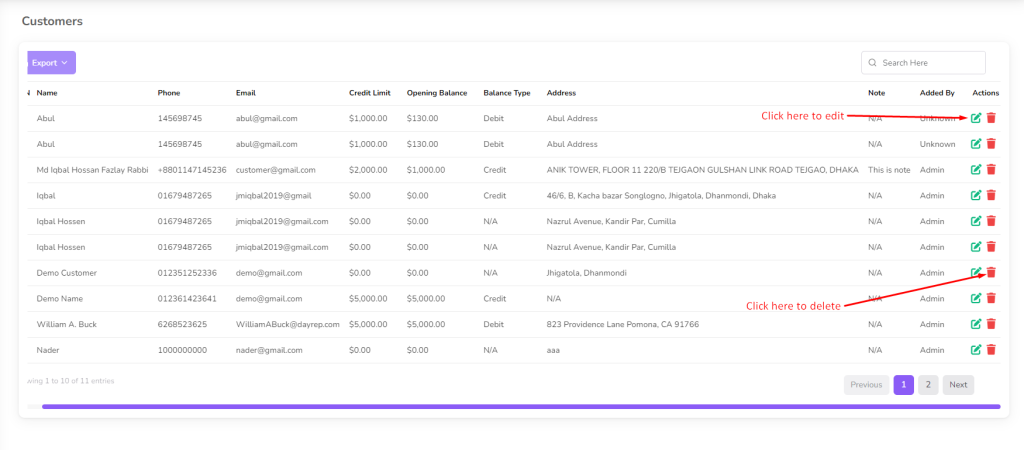
To edit customer details, click on the customer’s name from the list.
Customer details will be displayed, allowing you to view or modify their information.

Make any necessary changes and click on the “Update” button to save the changes.
To delete a customer, click on the “Delete” button next to their name.

Supplier
Supplier management is a feature that allows you to manage your suppliers effectively. You can add, edit, and delete supplier information.
To add a new supplier, navigate to the “Parties” section from the left sidebar and click on “Add Supplier”.

Fill in the required supplier details and click on the “Submit” button.
When adding a supplier, you need to specify their opening balance, which can be either a debit or credit. Debit Balance: A debit balance indicates that you owe the supplier money at the time of adding them. Credit Balance: A credit balance means the supplier owes you money at the time of adding them.
The Credit Limit is an optional feature. If enabled, it sets a maximum amount that the supplier can charge without exceeding the limit.

You can view the list of all suppliers by clicking on the “Supplier List” menu.

To edit supplier details, click on the supplier’s name from the list.
Supplier details will be displayed, allowing you to view or modify their information.

Make any necessary changes and click on the “Update” button to save the changes.
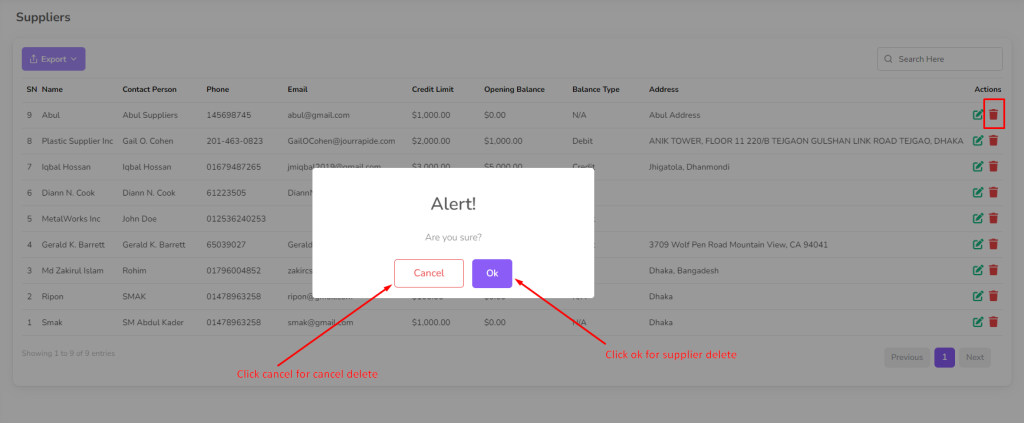
To delete a supplier, click on the “Delete” button next to their name.