Supplier Payment
Home / Documentation /
📦 Product Stock
🛒 Orders
💰 Sales
🛍️ Purchase
📊 RM Stock
📅 Attendance
💸 Expense
📑 Accounting
💳 Supplier Payment
📥 Customer Receive
👔 Payroll
🗑️ RM Waste
🗑️ Product Waste
📜 Quotations
📈 Reports
- Product Price History
- Raw Material Price History
- RM Purchase Report
- RM Item Wise Purchase Report
- RM Stock Report
- Supplier Due Report
- Supplier Balance Report
- Supplier Ledger
- Production Report
- Product Production Report
- Sale Report
- Item Wise Sale Report
- Customer Due Report
- Customer Ledger
- Profit & Loss Report
- Product Profit Report
- Attendance Report
- Expense Report
- Salary Report
- RM Waste Report
- Product Waste Report
- ABC Analysis Report
⚙️ Settings
💳 Credit
In this module, you can manage payments to your suppliers. You can give supplier due payments and also pay a partial amount. Along with this, you can track pending balances, maintain payment history, and generate reports for better financial control.
Supplier Payment
The Supplier Payment feature allows you to effectively manage payment to your supplier. You can track payment, view payment history, and generate payment reports.
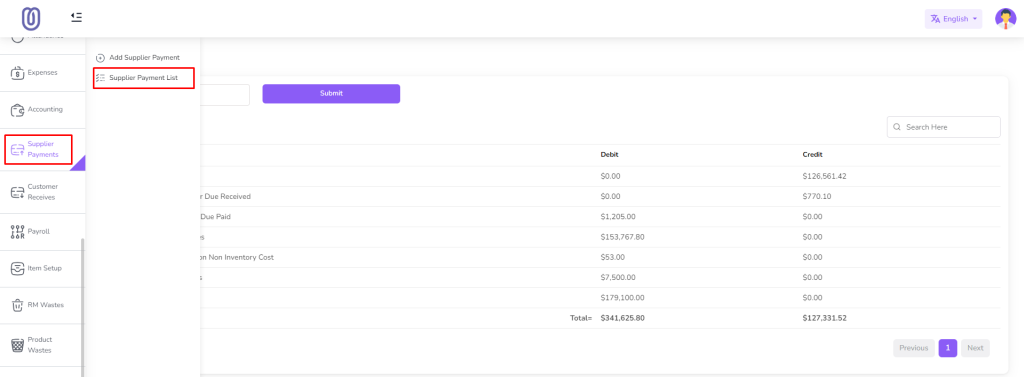
To access Supplier Payment, navigate to the “Supplier Payment” menu.
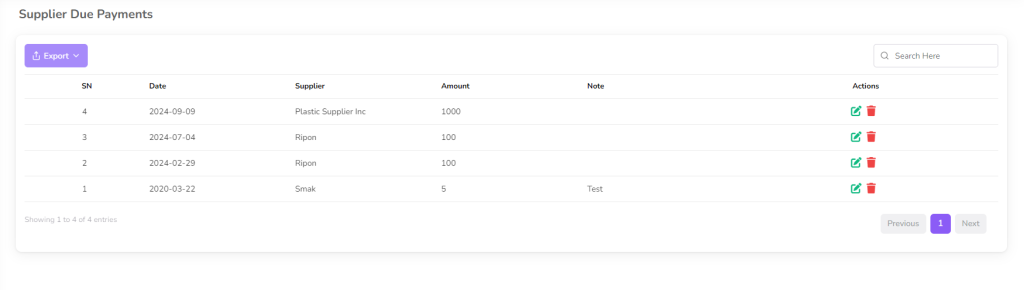
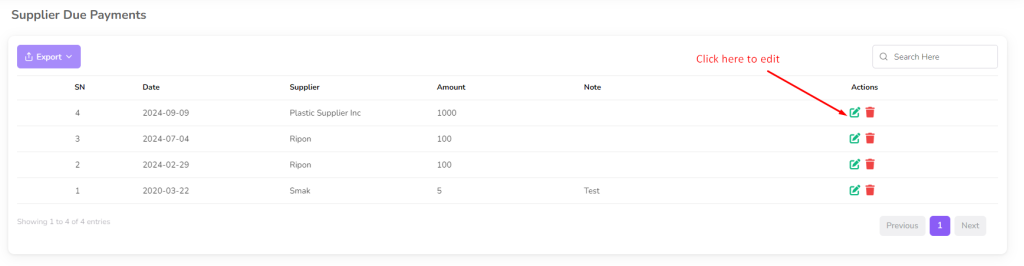
Once you access the Supplier Payment page, you can view date, supplier name, amount, note.
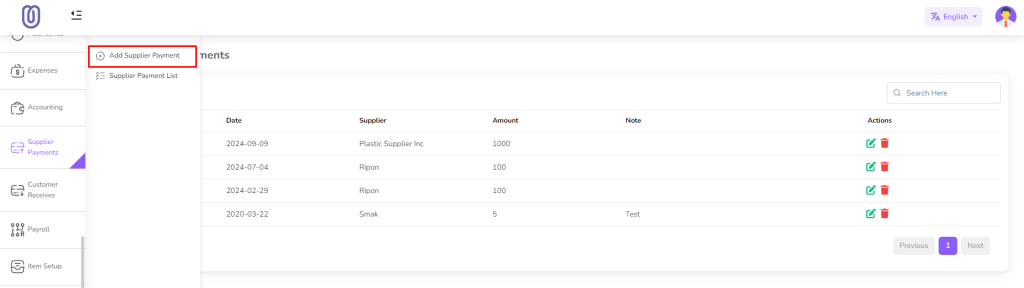
To add a payment, select the supplier and click on the “Add Supplier Payment” from the left sub menu.
Enter the payment details, including the amount and payment date, and click on the “Submit” button.
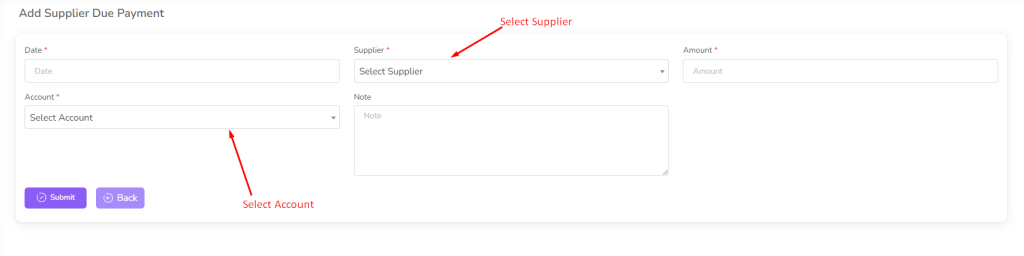
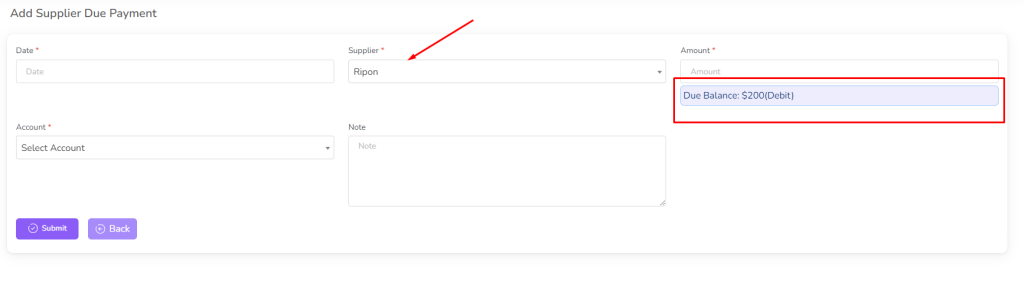
When select supplier from dropdown, you can see due balance of that supplier.
For edit payment click on the “Edit” Icon.
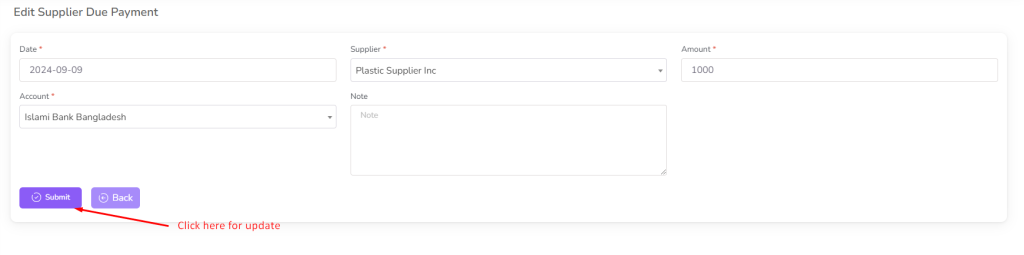
Make the necessary changes and click on the “Submit” button to save the changes.
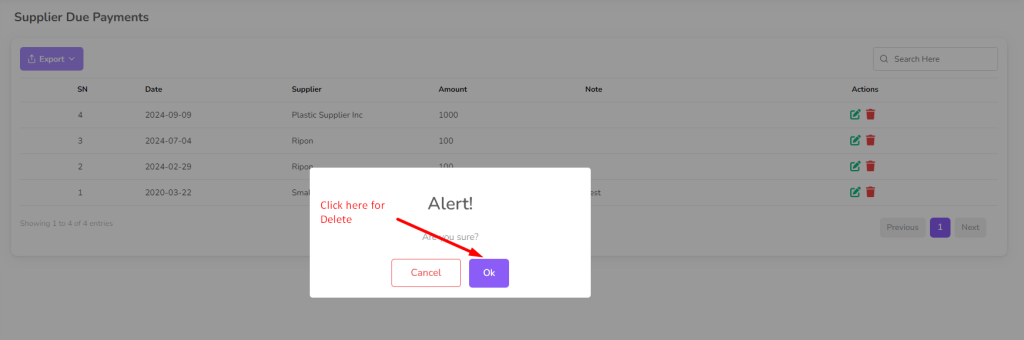
To delete a payment, click on the “Delete” button next to the payment you want to delete. Then a confirmation dialog will be opened.
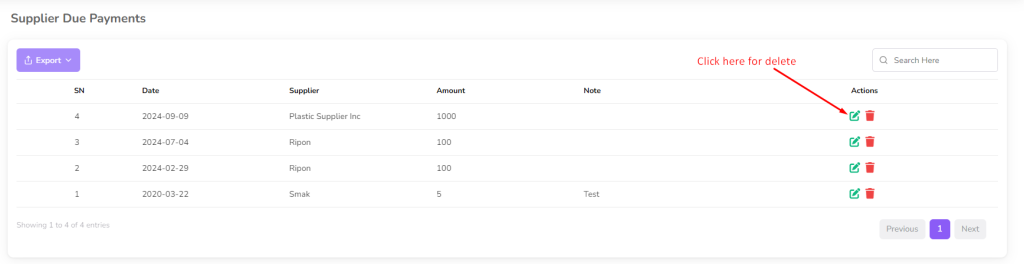
Confirm the deletion and the payment will be removed from the list.