
Manufacture
Home / Documentation /
📦 Product Stock
🛒 Orders
💰 Sales
🛍️ Purchase
📊 RM Stock
📅 Attendance
💸 Expense
📑 Accounting
💳 Supplier Payment
📥 Customer Receive
👔 Payroll
🗑️ RM Waste
🗑️ Product Waste
📜 Quotations
📈 Reports
- Product Price History
- Raw Material Price History
- RM Purchase Report
- RM Item Wise Purchase Report
- RM Stock Report
- Supplier Due Report
- Supplier Balance Report
- Supplier Ledger
- Production Report
- Product Production Report
- Sale Report
- Item Wise Sale Report
- Customer Due Report
- Customer Ledger
- Profit & Loss Report
- Product Profit Report
- Attendance Report
- Expense Report
- Salary Report
- RM Waste Report
- Product Waste Report
- ABC Analysis Report
⚙️ Settings
💳 Credit
Manufacture is a module that allows you to manage your production process and track the losses that occur during the production process. Also in this module you can forecast the demand for your products.
Manufacture
The Manufacture module is designed to give you full control over your company’s production process. It allows you to plan, manage, and track the creation of products efficiently from beginning to end.
Step 1:To start, go to the Manufacture menu located in the left sidebar of your dashboard. From there, click on the “Add Manufacture” option. This will open a form where you can enter all the necessary details about your manufacturing process, such as product name, quantity, raw materials, and other required information. By filling out this form, you begin the process of recording and managing a new production cycle.

Fist need to select a product and enter product quantity then click on the “Go” button. If this product stock type is “Batch” then you need to enter batch number also. If product stock type is “Expiry” then you need to enter expiry date also.
Note: If you don’t have any product then first you need to add a product. For add product go to the Product section.
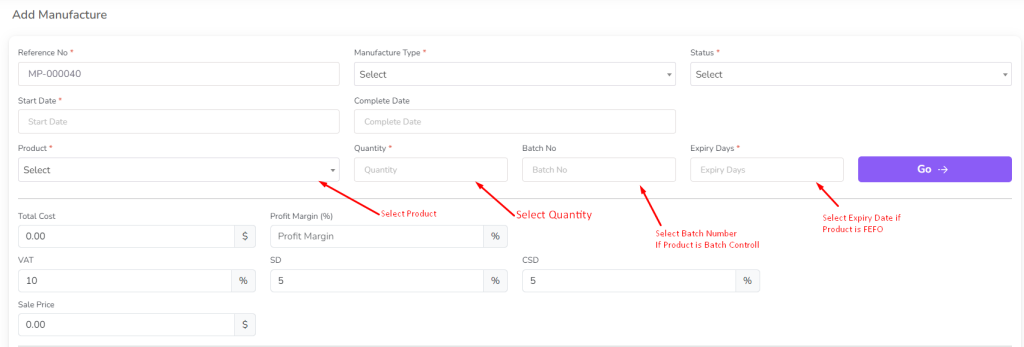
After clicking on the “Go” button, the system will display a detailed manufacturing form. This form is divided into different sections to help you manage the production process more effectively.
In the Raw Material section, you can select and allocate the materials required for production.
The Non-Inventory Item section allows you to add items or resources that are not tracked as inventory but are still needed in the production process.
The Production Stage section lets you define and monitor each stage of the manufacturing cycle, ensuring that the process is completed step by step.

You can change the quantity of raw material, Non Inventory Item cost, and production stage time.
Also that you can add manufacture scheduling from here.
Manufacture scheduling is a feature that allows you to plan and schedule your production process in advance. This includes setting specific dates and times for each stage of production, ensuring that your products are manufactured and delivered on time. By scheduling your manufacturing process, you can optimize your production workflow, reduce delays, and increase overall efficiency.
When you add production schedule the genchat will be automatically generated.

After click “Add More” button from the manufacture scheduling table a modal will be open. and you need to fill up this form and submit it.When you click on the “Add More” button from the Manufacture Scheduling Table, a modal window will appear on your screen. This modal contains a form that allows you to add additional scheduling details for your manufacturing process.
Inside this form, you will typically need to provide important information such as the production stage, assigned resources or staff, timeframe or schedule, and any other relevant details required for proper planning. After filling in all the necessary fields carefully, click on the “Submit” button. Once submitted, the new scheduling information will be added to the table, helping you manage and organize the entire manufacturing workflow more effectively.
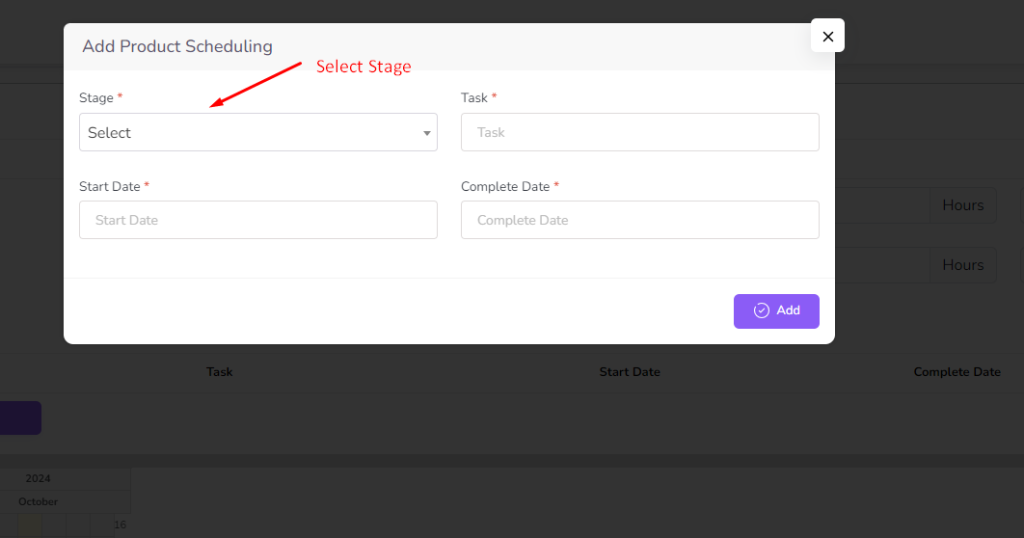
Once you submit the form, the system will automatically update the Manufacture Scheduling Table with the new details you provided. This means that all the information, such as production stages, assigned resources, timelines, or tasks, will now be displayed in the table.
The updated table gives you a clear and organized view of the entire manufacturing schedule, allowing you to track progress, identify upcoming tasks, and ensure that each stage of production is properly managed. This helps in maintaining accuracy, improving efficiency, and keeping the manufacturing process on the right track.

Note: If your manufacture has been done you cannot edit this manufacture. Also in edit form you cannot change product, product quantity, batch number, expiry date and you cannot change manufacture type
For list of manufacture go to the Manufacture List menu from the left sidebar.

In the Manufacture List Table, you can view a complete list of all the manufacturing records that have been created in the system. Each row in the table shows important manufacture details, such as the product name, quantity, raw materials used, production stages, and current status.
Along with the details, you will also see an Action button next to each record. This button allows you to perform different actions like viewing full details, editing the record, or deleting it if required. By using this table, you can easily monitor, manage, and control all your manufacturing activities in one place.

For Edit manufacture click on the “Edit” Icon from the action column.
Note: If your manufacture has been done you cannot edit this manufacture. Also in edit form you cannot change product, product quantity, batch number, expiry date and you cannot change manufacture type

When you click on the Edit button, the system will open a form that displays all the existing details of the selected manufacture record. This form is organized into three main sections: Raw Material, Non-Inventory Item, and Production Stage.
In the Raw Material section, you will see the materials that were previously assigned for the production. Here, you can update the material type, quantity, or replace them if required.
The Non-Inventory Item section allows you to review or modify items that are not part of the inventory but are necessary for the manufacturing process. You can add new ones, remove unused items, or update their details.
In the Production Stage section, you can edit the stages of production, adjust the timeline, or reassign tasks and resources to keep the workflow accurate.
After reviewing and making the necessary changes, click on the “Submit” button. The system will then update the manufacture record with your modifications, ensuring the production data remains correct and up to date.

To clone a manufacture, click on the “Clone” icon in the Action column of the Manufacture List Table. This will create a duplicate record with the same details, which you can edit if needed and then save as a new manufacture entry.

When you click the Clone button, a form will appear with the copied details of Raw Material, Non-Inventory Item, and Production Stage. You can modify these details if required and then click on the “Submit” button to save it as a new manufacture record.

To view manufacture details, click on the “View” icon in the Action column of the Manufacture List Table. It will display complete information of the selected manufacture, including raw materials, non-inventory items, and production stages, in read-only mode.

To download manufacture details, click on the “Download” icon in the Action column. A file with all the manufacture information, including raw materials, non-inventory items, and production stages, will be generated for saving to your system.
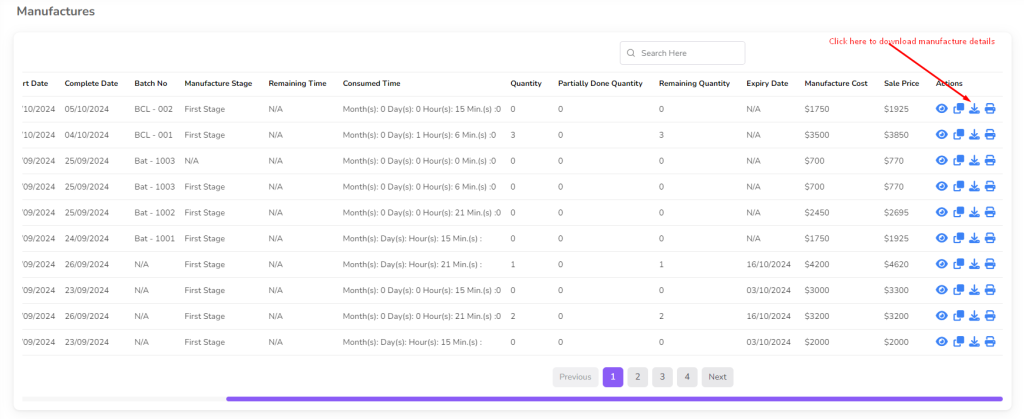
To print manufacture details, click on the “Print” icon in the Action column. This will open a printer-friendly page with all manufacture information, which you can directly print for records or reporting.

Production Loss
The Production Loss feature helps you record and manage any losses that occur during the manufacturing process.
It ensures transparency by keeping track of wasted or damaged items during production.
To add a production loss, go to the Manufacture menu from the left sidebar.
Click on “Add Production Loss” to open the form.
Fill in the required details about the loss and save it for proper record-keeping.

After click add production loss button a form will be shown. Select a manufacture from the dropdown then this manufacture product and raw material will be shown. You can change the quantity of raw material and product and add loss note. You cannot input loss quantity more than production quantity. After that click on the “Submit” button.

After submit the form the production loss table will be updated. you will be redirected to the production loss list page. Also you can see the production loss list from the production loss list menu from the left sidebar.

In the Production List, you can view details of all recorded losses. It shows the loss product name, the quantity lost, and also calculates the loss percentage to help you track production efficiency.

Demand Forecasting By Order
Demand Forecasting by Order helps you predict product demand based on customer orders.
It improves production planning and reduces the risk of overproduction or shortages.
To use this feature, go to the Manufacture menu from the left sidebar.
Click on “Demand Forecasting By Order” to generate forecasts from your order data.

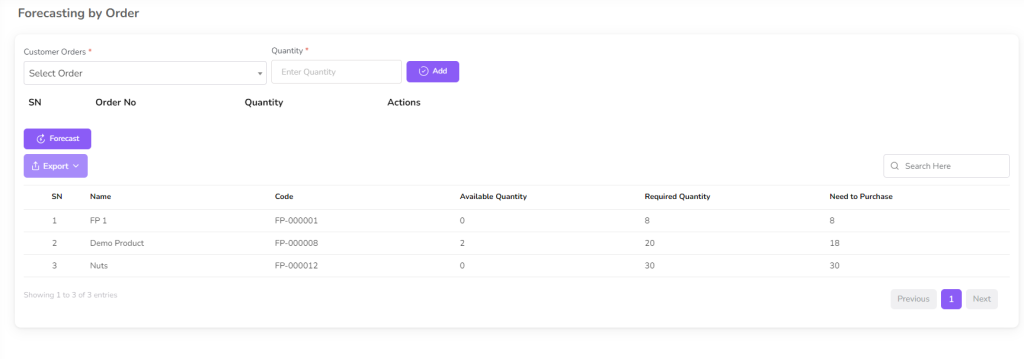
First, select the required Order from the dropdown menu. Then, enter the quantity you want to forecast and click on the “Add” button to include it in the demand forecasting list.

You can select and add multiple orders for demand forecasting. Once all orders are added, click on the “Forecast” button to generate the final demand forecast.

After completing the forecasting, the Forecasting Table will automatically update. It will display the forecasted quantities based on the selected orders for better production planning.
Demand Forecasting By Product
Demand Forecasting by Product helps predict future product demand using past sales data and trends.
It improves inventory management and ensures timely production.
To use this feature, go to the Manufacture menu from the left sidebar.
Click on “Demand Forecasting By Product” to generate forecasts based on product history.

Select a product from the dropdown and enter the quantity you want to forecast. Click on the “Forecast” button to generate results, and you can also add multiple products for forecasting.

The system will then analyze historical sales data along with other factors like trends and patterns. Based on this analysis, it will generate a forecasted demand for the selected product, helping in better planning and decision-making.
