
Orders
Home / Documentation /
📦 Product Stock
🛒 Orders
💰 Sales
🛍️ Purchase
📊 RM Stock
📅 Attendance
💸 Expense
📑 Accounting
💳 Supplier Payment
📥 Customer Receive
👔 Payroll
🗑️ RM Waste
🗑️ Product Waste
📜 Quotations
📈 Reports
- Product Price History
- Raw Material Price History
- RM Purchase Report
- RM Item Wise Purchase Report
- RM Stock Report
- Supplier Due Report
- Supplier Balance Report
- Supplier Ledger
- Production Report
- Product Production Report
- Sale Report
- Item Wise Sale Report
- Customer Due Report
- Customer Ledger
- Profit & Loss Report
- Product Profit Report
- Attendance Report
- Expense Report
- Salary Report
- RM Waste Report
- Product Waste Report
- ABC Analysis Report
⚙️ Settings
💳 Credit
Orders in the manufacturing software allow you to manage customer orders, track order status, and manage inventory accordingly.
Customer Orders
To add a customer order, go to the Orders menu from the left sidebar and click on “Add Order”. This will open a form where you can enter customer and order details to create a new order.
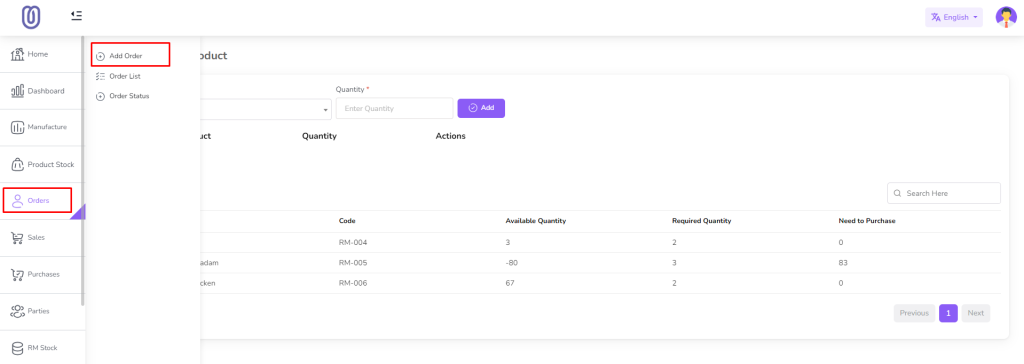
Click Add more button from the order item table to add more items to the order. After click add more button a a form will be populated with product and product rate.

If the order type is Work Order, you can also add related Invoice, Quotations, and Deliveries. This helps manage the complete order process from billing to product delivery.

If the order type is set to Quotation, the system will only allow you to create and manage quotations for the customer. In this case, the options for Invoice and Deliveries will remain hidden, since no final sale or delivery is involved at the quotation stage. This ensures that only relevant fields and actions are shown based on the order type.

When you add product to the order. you can check Stock and Estimated Cost and Date. For check stock first add product and check “Check Stock” button.

After clicking the “Check Stock” button, a modal window will open showing detailed stock information. You can view available quantities, batch numbers, and expiry dates of the selected product in this modal.

To check the Estimated Cost and Date, click on the “Calculate Estimated Cost and Date” button. The system will then calculate and display the estimated production cost and expected completion date based on the selected materials and quantities.

After clicking the Calculate button, the system will display the Estimated Cost and Estimated Completion Date. This helps you plan production and manage resources efficiently.

If the order type is Work Order, the Invoice/Quotation section will be displayed automatically. The system will also add one row by default, allowing you to enter invoice or quotation details immediately.

After clicking the “Add More” button, a form will appear for entering additional details. Fill in the required information and then click on the “Submit” button to save the entry.

After submitting the form, the Invoice/Quotation table will be automatically updated with the new entry. The table will display all relevant details such as product, quantity, price, and other information entered in the form. This allows you to review and manage all invoices or quotations in one place efficiently.

To add a Delivery Challan, click on the “Add More” button in the Deliveries table. This will open a form where you can enter the necessary delivery details for the selected order.

After clicking the “Add More” button, a form will appear where you can enter all the required delivery details. Once the information is filled in, click on the “Submit” button to save the delivery record.

After submit the form the Deliveries table will be updated.
After that click on the “Submit” button. Then you will be redirected to the order list page.
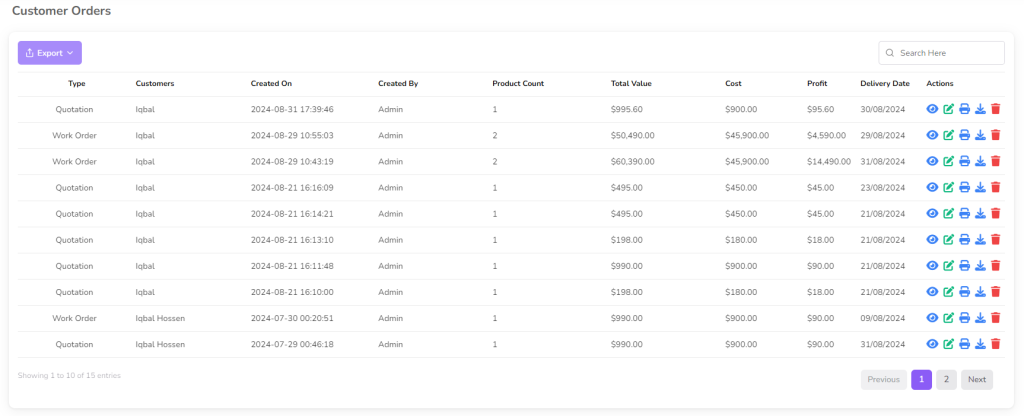
To view order details, click on the “View” icon in the Action column of the Orders table. This will display all information related to the selected order, including products, quantities, and customer details, in a read-only format.

In the Order Details view, you can see comprehensive information about the selected order. This includes order details, Invoice/Quotation details, and Delivery details, allowing you to track the complete order process in one place.
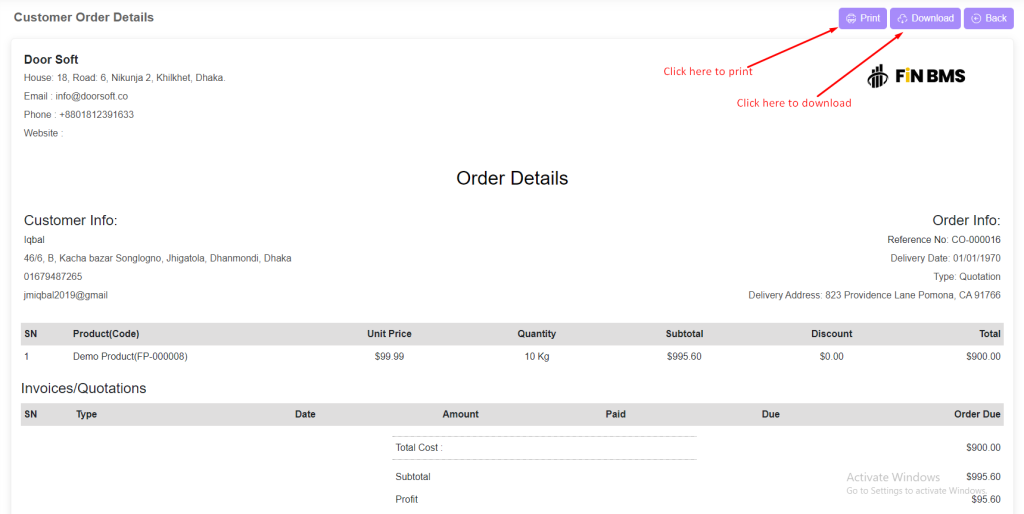
To download order details, click on the “Download” icon in the Action column of the Orders table. This will generate a file containing all order information, including order, Invoice/Quotation, and delivery details, which you can save for record-keeping.

To print order details, click on the “Print” icon in the Action column of the Orders table. This will open a printer-friendly version of the order, including order, Invoice/Quotation, and delivery details, ready for physical printing.

To edit an order, click on the “Edit” icon in the Action column of the Orders table. This will open a form where you can update order details, Invoice/Quotation information, or delivery records as needed.

After clicking the Edit button, a form will appear showing the order details. You can make any necessary changes and then click on the “Submit” button to save the updated information.

To delete an order, click on the “Delete” icon in the Action column of the Orders table. This will remove the selected order from the system after confirmation.
