
Settings
Home / Documentation /
📦 Product Stock
🛒 Orders
💰 Sales
🛍️ Purchase
📊 RM Stock
📅 Attendance
💸 Expense
📑 Accounting
💳 Supplier Payment
📥 Customer Receive
👔 Payroll
🗑️ RM Waste
🗑️ Product Waste
📜 Quotations
📈 Reports
- Product Price History
- Raw Material Price History
- RM Purchase Report
- RM Item Wise Purchase Report
- RM Stock Report
- Supplier Due Report
- Supplier Balance Report
- Supplier Ledger
- Production Report
- Product Production Report
- Sale Report
- Item Wise Sale Report
- Customer Due Report
- Customer Ledger
- Profit & Loss Report
- Product Profit Report
- Attendance Report
- Expense Report
- Salary Report
- RM Waste Report
- Product Waste Report
- ABC Analysis Report
⚙️ Settings
💳 Credit
In this module you can configure and customize the core settings of the system. You can manage company profile details, tax configurations, and unit settings. It also allows you to set up white labeling, email preferences, production stages, and import data for smooth operations. This ensures the system works exactly as per your business requirements.
Company Profile
In this section you can manage the company profile.
To access Company Profile, navigate to the “Settings” section and click on “Company Profile”.

After clicking on “Company Profile” you can view and edit the company profile. You can also upload the company logo. Change the company details and click on the “Submit” button to save the changes.

Note: Company Logo will be show on Invoice
Tax Settings
In this section you can manage the Tax.
To access Tax Settings, navigate to the “Settings” section and click on “Tax Settings”.
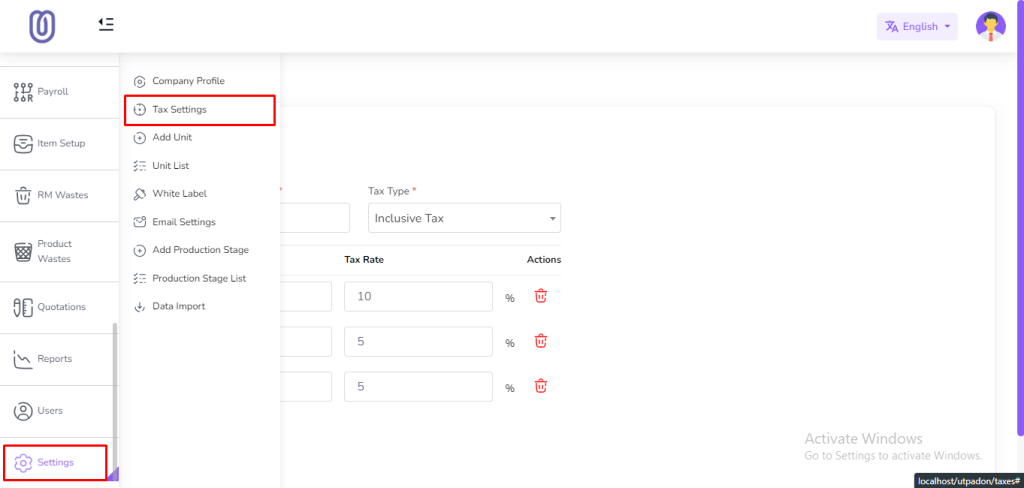
If you want to no apply tax on any product, then you can select No the “Collect Tax” Box. Also If you want to apply tax on any product inclusively, then select Inclusive Tax from the “Tax Type” dropdown. You can add multiple taxes click add more button.
Note: Inclusive Tax is a type of tax where the tax amount is included in the product price. The customer pays the price displayed, and the tax is calculated and deducted from the total amount.
Note: Exclusive Tax is a type of tax where the tax amount is not included in the product price. The customer pays the price displayed, and the tax is added to the total amount at the time of purchase.

Unit
In this section you can manage the Unit. You can add, edit and delete the unit.
To access Unit List, navigate to the “Settings” section and click on “Unit List”.

After clicking on “Unit List” you can view the unit list with name and description;

To add a new unit, click on the “Add Unit” from the sidebar menu.

Fill the unit name and description and click on the “Submit” button to save the changes.
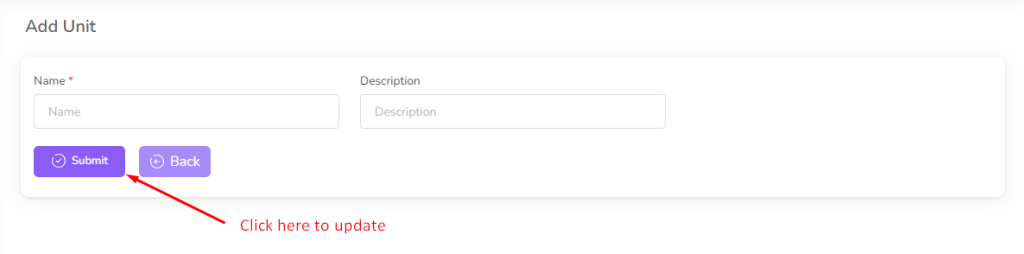
To edit the unit, click on the “Edit” button from the unit row.

After clicking on the “Edit” button you can edit the unit name and description and click on the “Submit” button to save the changes.

To delete the unit, click on the “Delete” button from the unit row.

White Label
In this section you can manage the white label.
To access White Label, navigate to the “Settings” section and click on “White Label”.
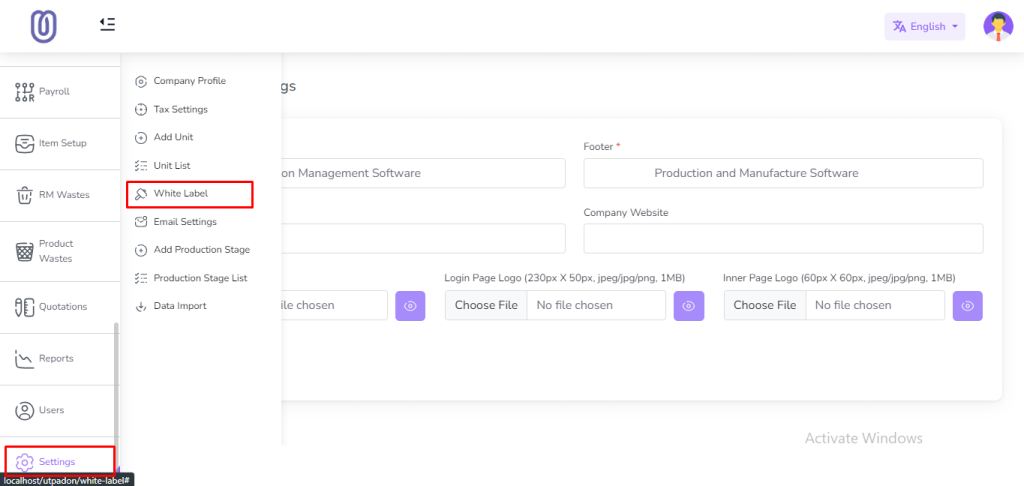
After clicking on “White Label” you can view and edit the white label. After editing click on the “Submit” button to save the changes.

Note: The White Label Login Page Logo will be displayed on the Login page, and the Inner Logo will be displayed on the top bar.
Email Settings
In this section you can manage the email settings.
To access Email Settings, navigate to the “Settings” section and click on “Email Settings”.

After clicking on “Email Settings” you can view and edit the email settings. After editing click on the “Submit” button to save the changes.

Production Stage
What is Production Stage and Where we use it?
Production Stage is a critical component in the production process of manufacturing and project management. It represents a specific phase where a product is manufactured or a project is developed. This stage is vital in ensuring the quality and efficiency of the final product.
The Production Stage is widely applied across various industries, including manufacturing, construction, software development, and more. It plays a key role in monitoring the production process, identifying potential bottlenecks, and ensuring that projects are completed within the specified timeframe and budget.
In this section you can manage the Production Stage. You can add, edit and delete the Production Stage.
To access Production Stage List, navigate to the “Settings” section and click on “Production Stage List”.

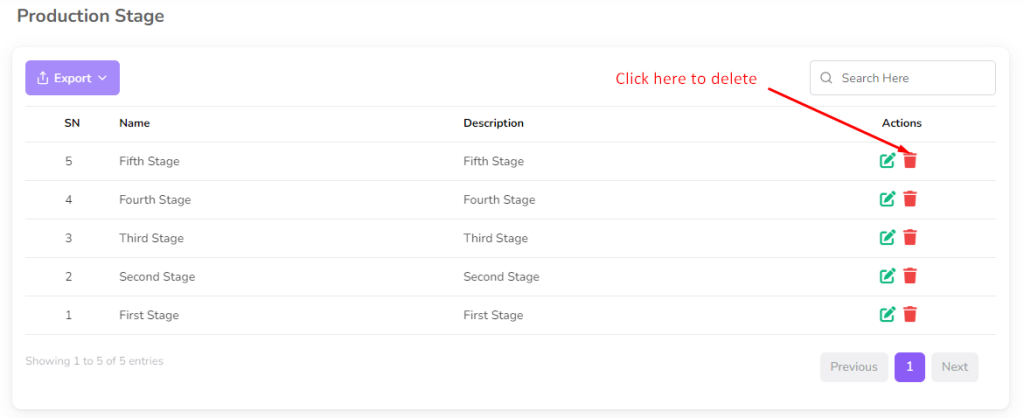
After clicking on “Production Stage List” you can view the production stage list with name and description;

To add a new production stage, click on the “Add Production Stage” from the sidebar menu.

Fill the production stage name and description and click on the “Submit” button to save the changes.

To edit the production stage, click on the “Edit” button from the production stage row.

After clicking on the “Edit” button you can edit the production stage name and description and click on the “Submit” button to save the changes.
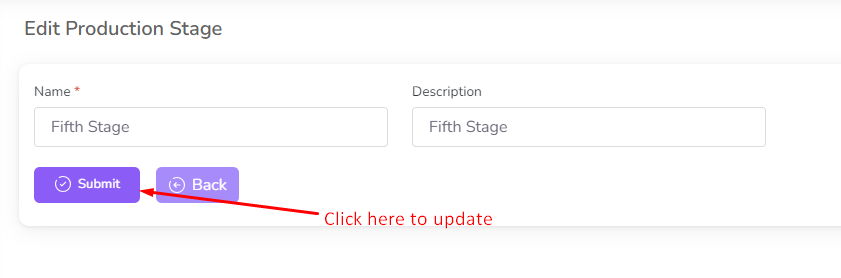
To delete the production stage, click on the “Delete” button from the production stage row.
Data Import
In this section you can import the data from excel file.
To access Data Import, navigate to the “Settings” section and click on “Data Import”.

First you need to download the sample excel file by clicking on the “Download Sample” Link. After Clicking on Download Sample Link you can download the zip file. After extract you can see the excel file.

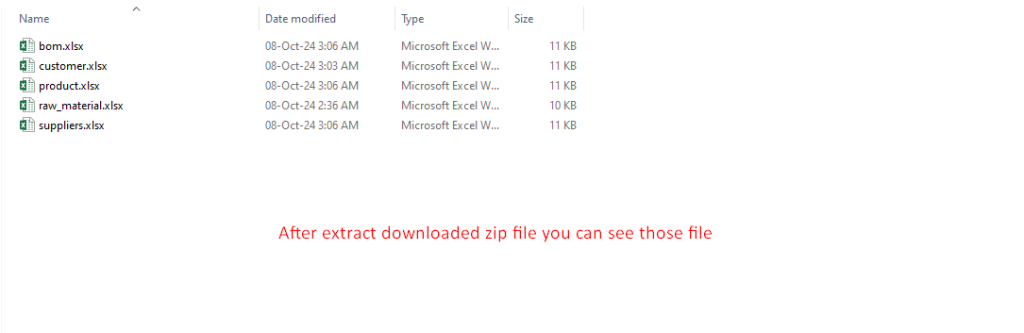
Open this excel file and fill the data according to the column.

After select the import type and upload the excel file click on the “Import” button.
