Expense
Home / Documentation /
📦 Product Stock
🛒 Orders
💰 Sales
🛍️ Purchase
📊 RM Stock
📅 Attendance
💸 Expense
📑 Accounting
💳 Supplier Payment
📥 Customer Receive
👔 Payroll
🗑️ RM Waste
🗑️ Product Waste
📜 Quotations
📈 Reports
- Product Price History
- Raw Material Price History
- RM Purchase Report
- RM Item Wise Purchase Report
- RM Stock Report
- Supplier Due Report
- Supplier Balance Report
- Supplier Ledger
- Production Report
- Product Production Report
- Sale Report
- Item Wise Sale Report
- Customer Due Report
- Customer Ledger
- Profit & Loss Report
- Product Profit Report
- Attendance Report
- Expense Report
- Salary Report
- RM Waste Report
- Product Waste Report
- ABC Analysis Report
⚙️ Settings
💳 Credit
In this module, you can manage your business expenses efficiently. You can add, edit, or delete expense records and categorize them for better tracking. The module also allows you to view detailed reports and keep your financial records organized.
Expense Category
In this section you can manage your expense type. Which is used to categorize your expense.
To manage your expense Category, navigate to the “Expense” section.
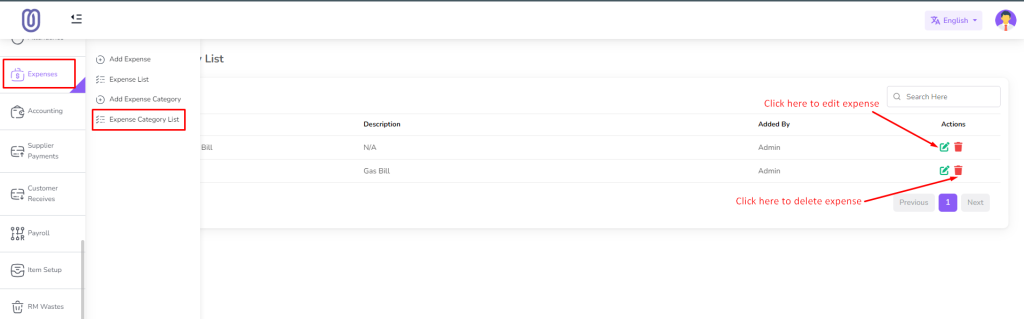
The Expense Category Management page displays all your expense types, including their names and descriptions.

To add a new expense type, click on the “Add Expense Category” From the left sub menu. Then a form will be opened.
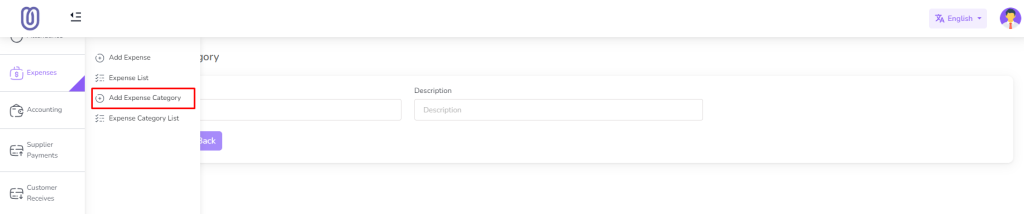
Fill in the details of the new expense category and click on the “Save” button to add it to the list.

To edit an existing expense category, click on the “Edit” button next to the type you want to edit. Then a form will be opened with the current details.
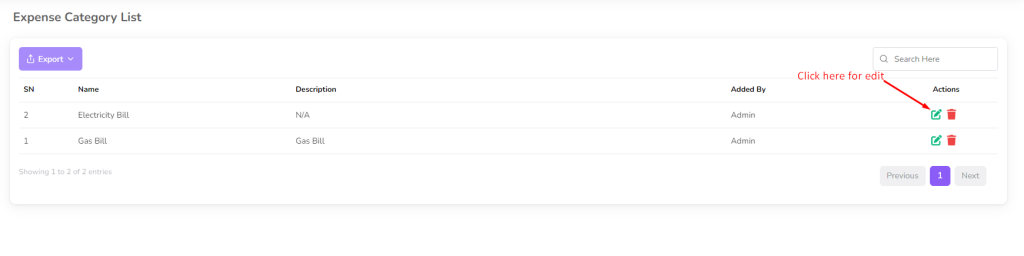
Make the necessary changes and click on the “Submit” button to save the changes.

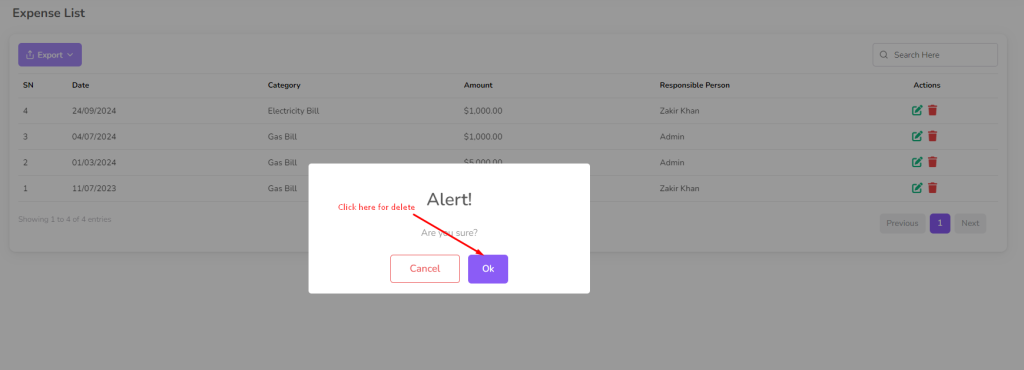
To delete an expense category, click on the “Delete” button next to the type you want to delete. Then a confirmation dialog will be opened.

Confirm the deletion and the expense category will be removed from the list.

Expense
In this section you can manage your expense, add, edit and delete expense.
To access the Expense Management page, navigate to the “Expense” section.

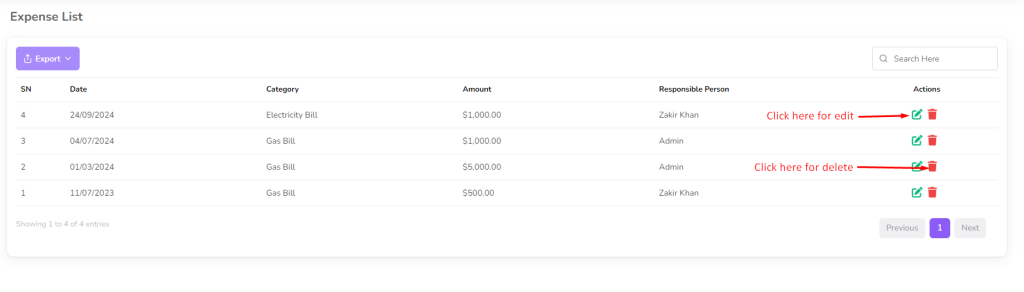
The Expense Management page displays all your expenses, including their dates, categories, descriptions, and amounts.
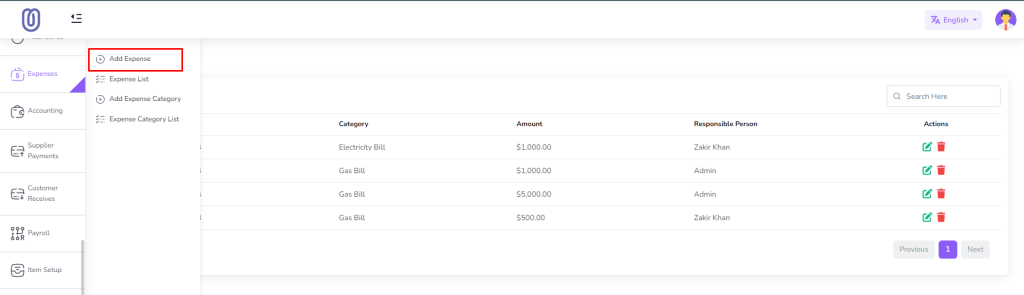
To add a new expense, click on the “Add Expense” From the left sub menu. Then a form will be opened.
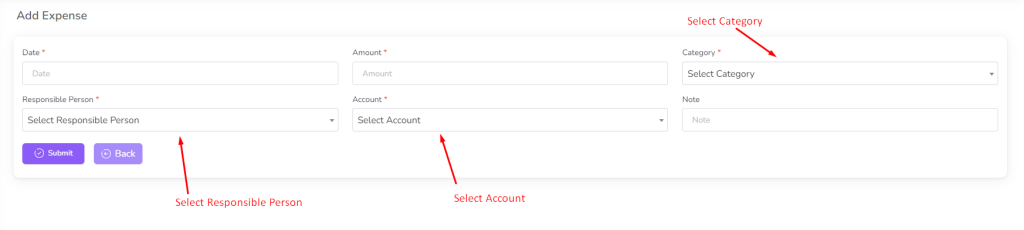
Fill in the details of the new expense and click on the “Submit” button to add it to the list.
To edit an existing expense, click on the “Edit” button next to the expense you want to edit. Then a form will be opened with the current details.
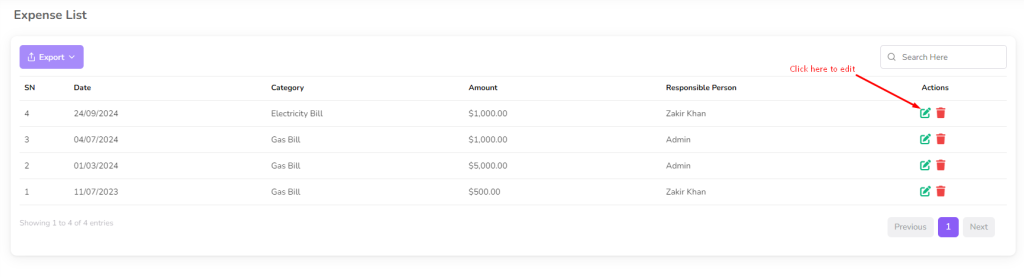
Make the necessary changes and click on the “Submit” button to save the changes.

To delete an expense, click on the “Delete” button next to the expense you want to delete. Then a confirmation dialog will be opened.
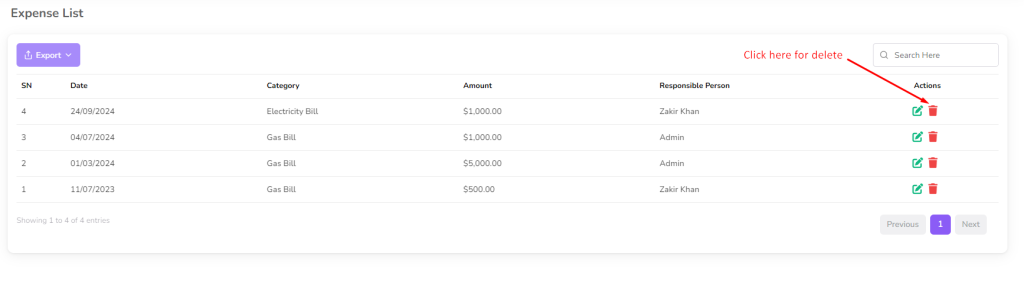
Confirm the deletion and the expense will be removed from the list.