
Purchase
Home / Documentation /
📦 Product Stock
🛒 Orders
💰 Sales
🛍️ Purchase
📊 RM Stock
📅 Attendance
💸 Expense
📑 Accounting
💳 Supplier Payment
📥 Customer Receive
👔 Payroll
🗑️ RM Waste
🗑️ Product Waste
📜 Quotations
📈 Reports
- Product Price History
- Raw Material Price History
- RM Purchase Report
- RM Item Wise Purchase Report
- RM Stock Report
- Supplier Due Report
- Supplier Balance Report
- Supplier Ledger
- Production Report
- Product Production Report
- Sale Report
- Item Wise Sale Report
- Customer Due Report
- Customer Ledger
- Profit & Loss Report
- Product Profit Report
- Attendance Report
- Expense Report
- Salary Report
- RM Waste Report
- Product Waste Report
- ABC Analysis Report
⚙️ Settings
💳 Credit
In this section you will be manage Purchase Management of Raw Material
To add purchase go to the Purchase menu from the left sidebar and click on “Add Purchase”.

Note: Purchase has two type one is purchase another is Purchase order. If you select purchase order this raw material cannot effect in stock. But if you select purchase then raw material will be effect in stock.
Select a raw material from the dropdown then modal will be shown with raw material rate.

Enter quantity and click on the “Add to Cart” button.
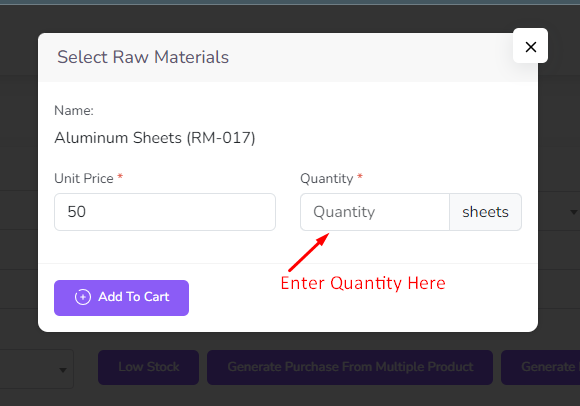
After click add to cart button a form will be shown unit price, quantity, total of raw material.

For Low Stock material automatically added to the cart. Click on the “Low Stock” button.

After click low stock button you will see low stock material in the cart.

For generate purchase from multiple product click on the “Generate Purchase From Multiple Product” button.

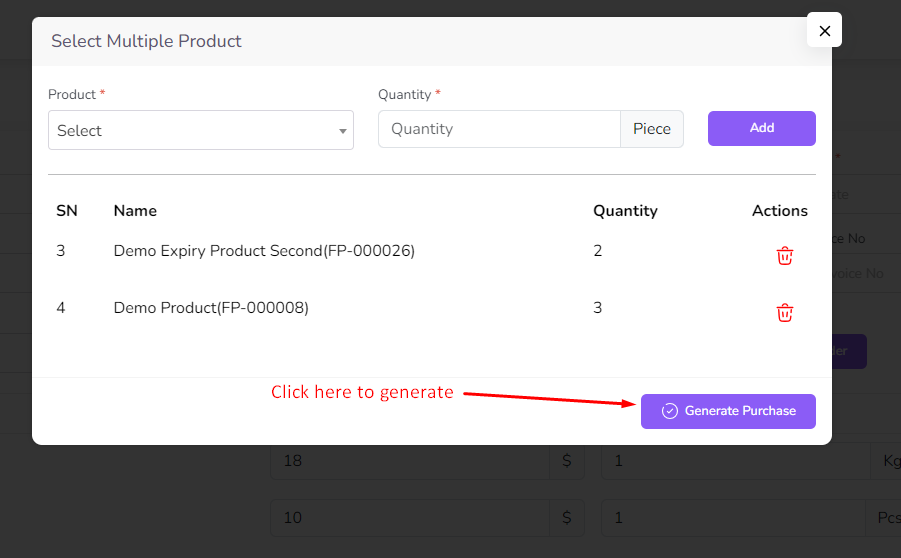
After click generate purchase from multiple product button a modal will be shown with product. You can select product and quantity and click on the “Add” button. You can add multiple product to the purchase.
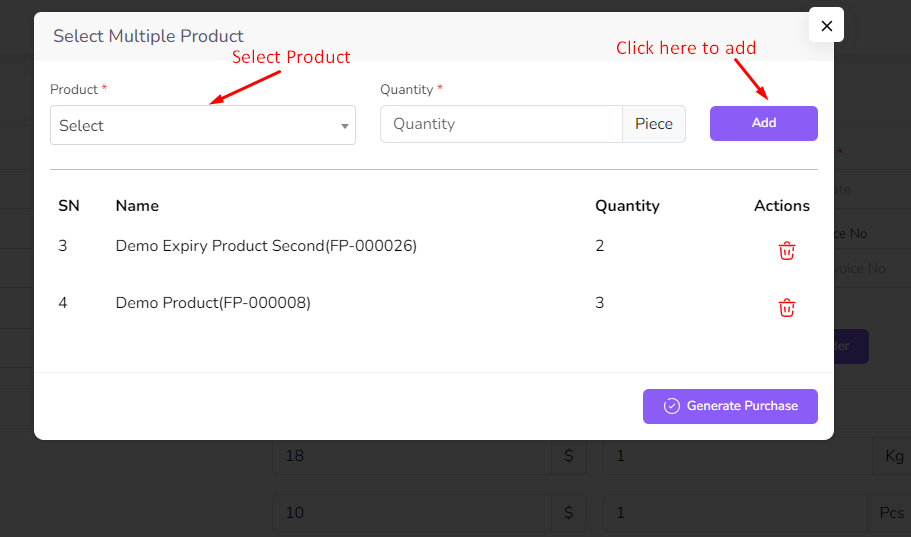
After that click on the “Generate Purchase” button. Then raw material will be added to the cart.
You can generate purchase from Order. Click on the “Generate Purchase From Order” button.
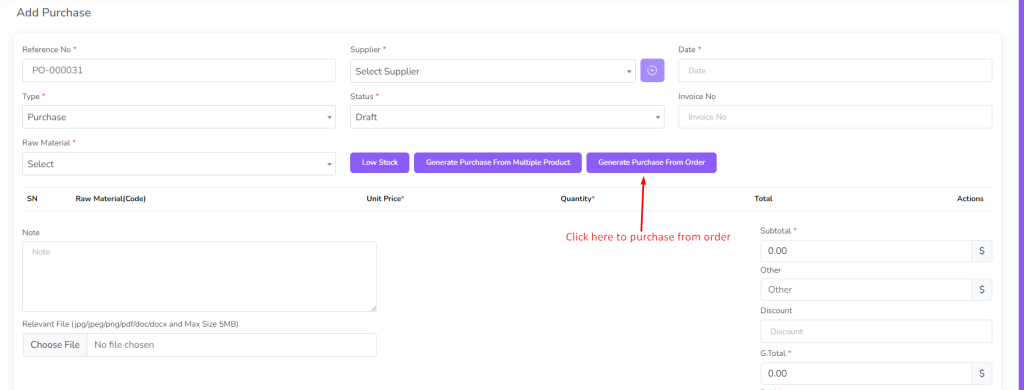
After click generate purchase from order button a modal will be shown with order. Select Order and click on the “Generate Purchase” button. Then raw material will be added to the cart.
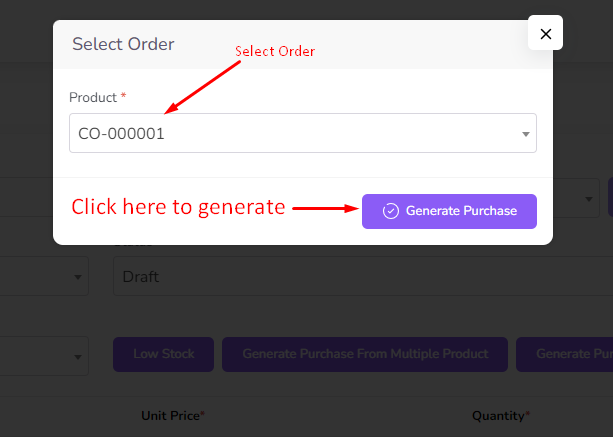
After add all raw material click on the “Submit” button. Then you will be redirected to the purchase list page.

For Edit Purchase click on the “Edit” icon from the action column. Edit Icon not show if purchase status is Final

After click edit button a form will be shown with product and product rate. Change if you want and click on the “Submit” button.

For view purchase details click on the “View” icon from the action column.
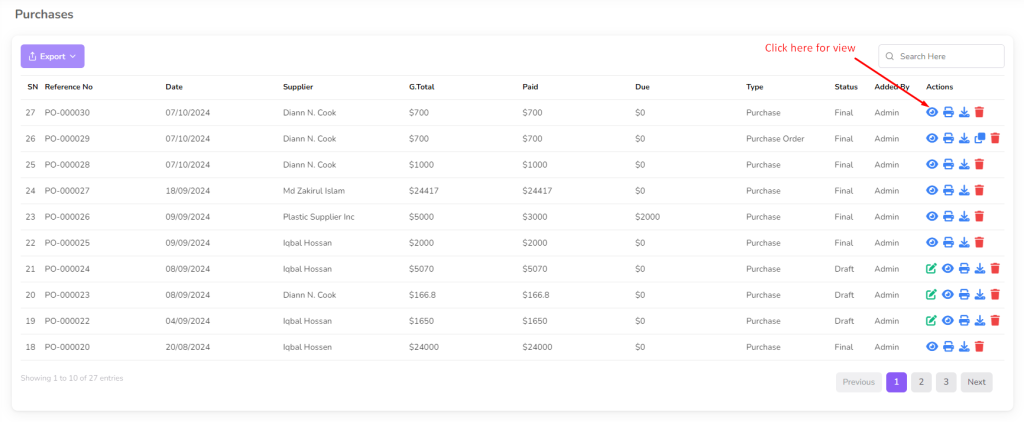
In about purchase details you can see purchase details.

For Print Invoice click on the “Print” icon from the action column.

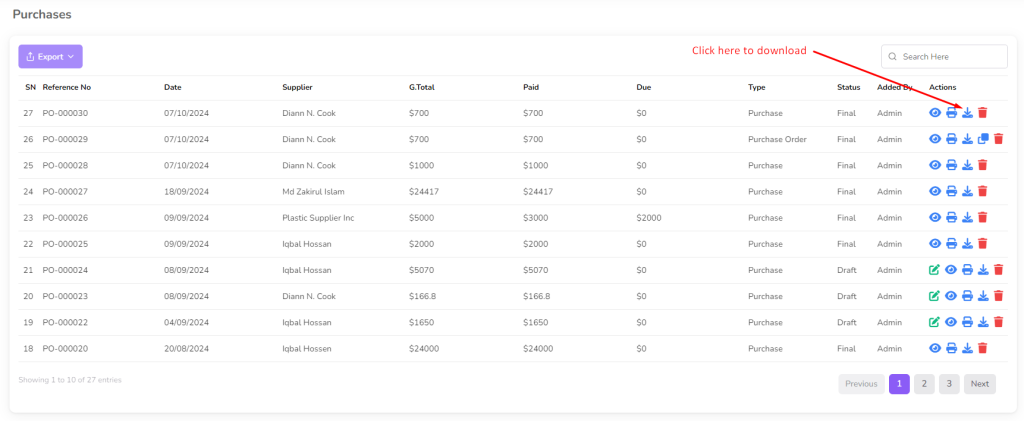
For Download Invoice click on the “Download” icon from the action column.
If your purchase type is purchase order then you can convert purchase order to purchase. Click on the “Convert to Purchase” button.
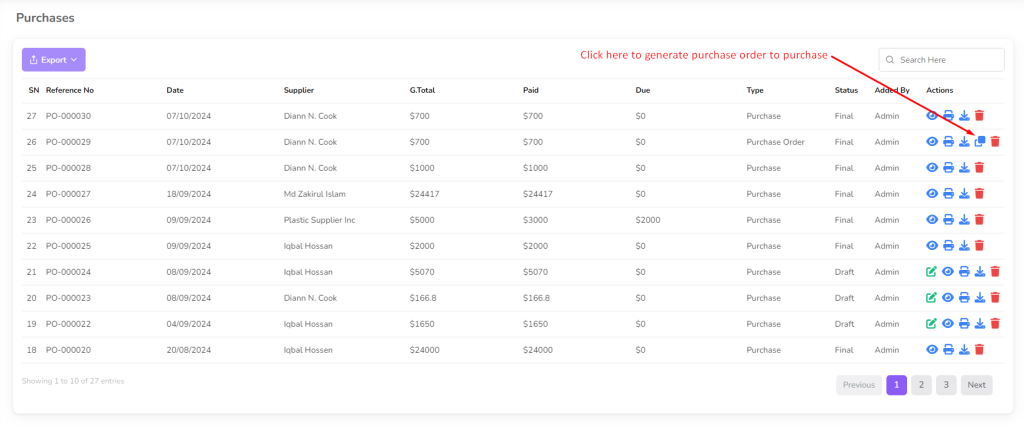
For Delete Purchase click on the “Delete” icon from the action column.
