
Item Setup
Home / Documentation /
📦 Product Stock
🛒 Orders
💰 Sales
🛍️ Purchase
📊 RM Stock
📅 Attendance
💸 Expense
📑 Accounting
💳 Supplier Payment
📥 Customer Receive
👔 Payroll
🗑️ RM Waste
🗑️ Product Waste
📜 Quotations
📈 Reports
- Product Price History
- Raw Material Price History
- RM Purchase Report
- RM Item Wise Purchase Report
- RM Stock Report
- Supplier Due Report
- Supplier Balance Report
- Supplier Ledger
- Production Report
- Product Production Report
- Sale Report
- Item Wise Sale Report
- Customer Due Report
- Customer Ledger
- Profit & Loss Report
- Product Profit Report
- Attendance Report
- Expense Report
- Salary Report
- RM Waste Report
- Product Waste Report
- ABC Analysis Report
⚙️ Settings
💳 Credit
In this section, you can set up your raw materials and products. You can also manage non-inventory items. Additionally, the module allows you to define item categories, update item details, and keep your product information organized for smooth operations.
Raw Material Category
In this section you can manage the Raw Material Category. You can add, edit and delete the Raw Material Category.
To access Raw Material Category List, navigate to the “Item Setup” section and click on “RM Category List”.

After clicking on “Raw Material Category” you can view the Raw Material Category list with category name;

To add a new Raw Material Category, click on the “Add RM Category” from the sidebar menu.

Fill the Raw Material Category name and click on the “Submit” button to save the changes.
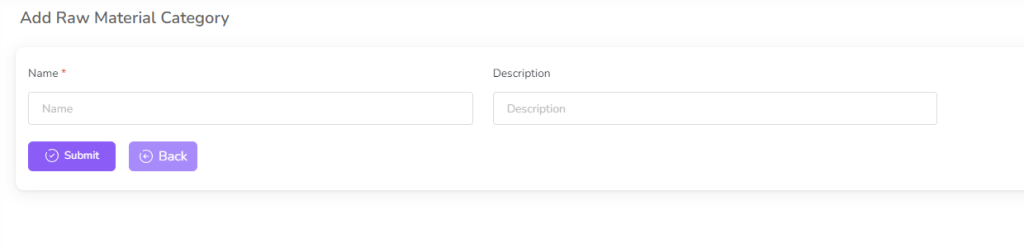
To edit the Raw Material Category, click on the “Edit” button from the Raw Material Category row.

After clicking on the “Edit” button you can edit the Raw Material Category name, description and click on the “Submit” button to save the changes.

To delete the Raw Material Category, click on the “Delete” button from the Raw Material Category row.

Raw Material
In this section, you can manage the Raw Material. You can add, edit, and delete Raw Material.
To access the Raw Material List, navigate to the “Item Setup” section and click on “Raw Material List”.
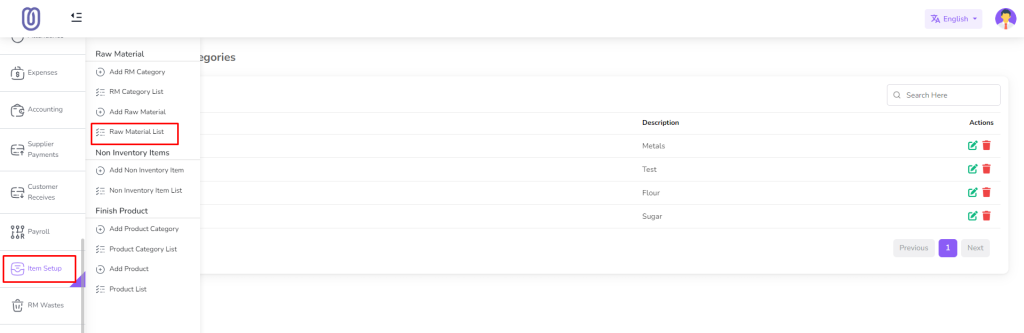
After clicking on “Raw Material List”, you can view the Raw Material list with Raw Material details.

To add a new Raw Material, click on the “Add Raw Material” from the sidebar menu.
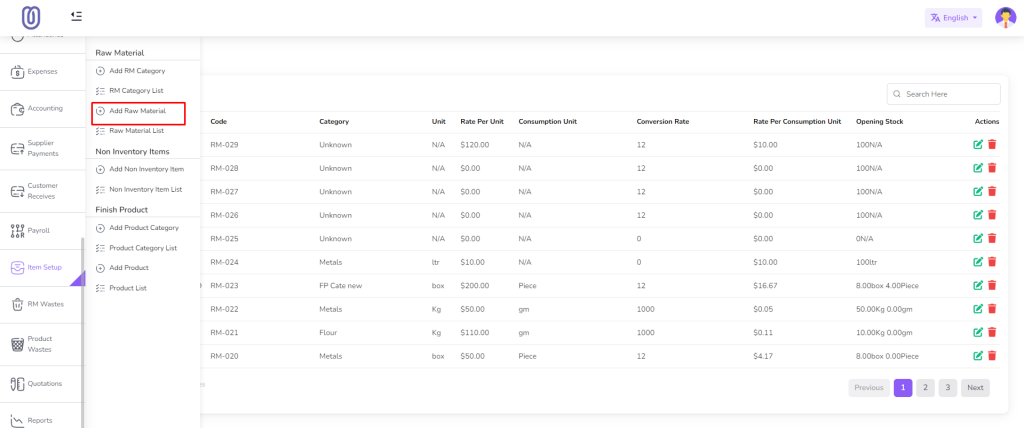
Fill the Raw Material details, select the Raw Material Category. Also if your purchase unit and sale unit is different then you need to check “Consumption Unit is Different” checkbox. After that you can see the consumption unit in the Raw Material row. Select the consumption unit from the dropdown. and type conversion rate. When you type conversion rate system will calculate the purchase price and sale price based on the conversion rate. When you checked “Consumption Unit is Different” checkbox then your opening stock and alert level will be based on the consumption unit.

To edit the Raw Material, click on the “Edit” button from the Raw Material row.

After clicking on the “Edit” button, you can edit the Raw Material details, if needed change the Raw Material Category then select the Raw Material Category and click on the “Submit” button to save the changes.

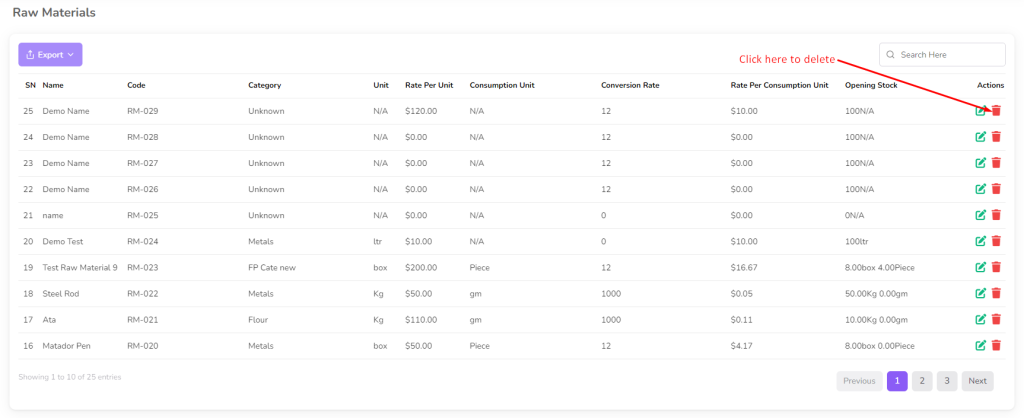
To delete the Raw Material, click on the “Delete” button from the Raw Material row.
Non Inventory Item
In this section, you can manage the Non Inventory Item. You can add, edit, and delete Non Inventory Item.
In production management software, a Non Inventory Item refers to a product or material that is not tracked or managed as inventory. This can include items that are not stocked or held in inventory, such as services, labor, or items that are directly consumed or used in production without being stored. Non Inventory Items are typically not subject to inventory management processes like tracking, counting, or reordering.
To access the Raw Material List, navigate to the “Item Setup” section and click on “Non Inventory Item List”.

After clicking on “Non Inventory Item List”, you can view the Non Inventory Item list with Non Inventory Item details.

To add a new Non Inventory Item, click on the “Add Non Inventory Item” from the sidebar menu.
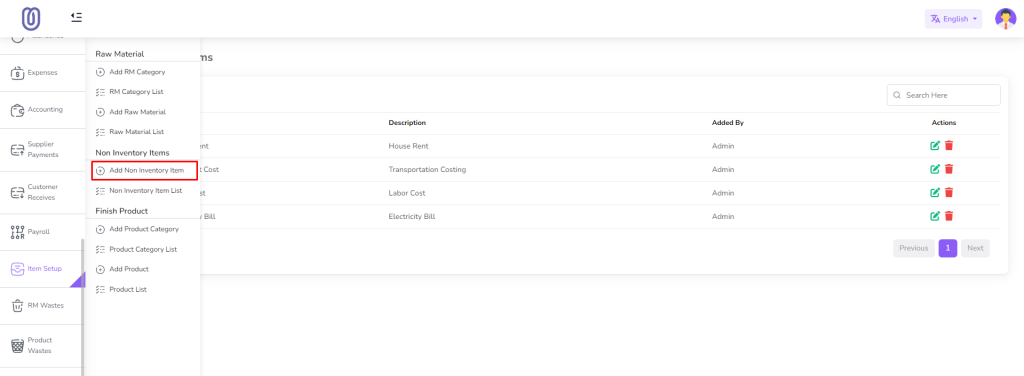
Fill the Non Inventory Item name and description and click on the “Submit” button to save the changes.

To edit the Non Inventory Item, click on the “Edit” button from the Non Inventory Item row.

After clicking on the “Edit” button, you can edit the Non Inventory Item details and click on the “Submit” button to save the changes.
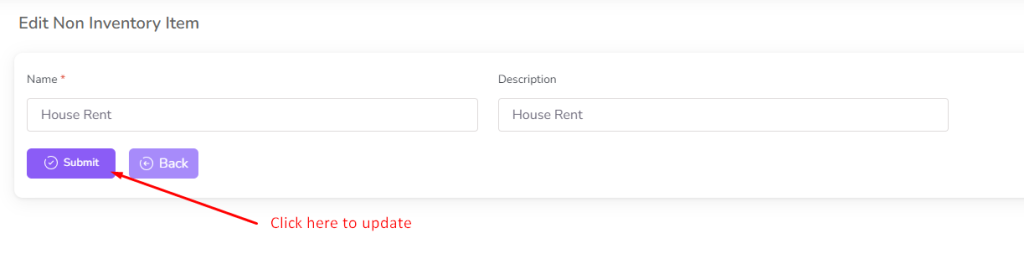
To delete the Non Inventory Item, click on the “Delete” button from the Non Inventory Item row.

Product Category
In this section, you can manage the Product Category. You can add, edit, and delete Product Inventory Item.
To access the Product Category List, navigate to the “Item Setup” section and click on “Product Category List”.
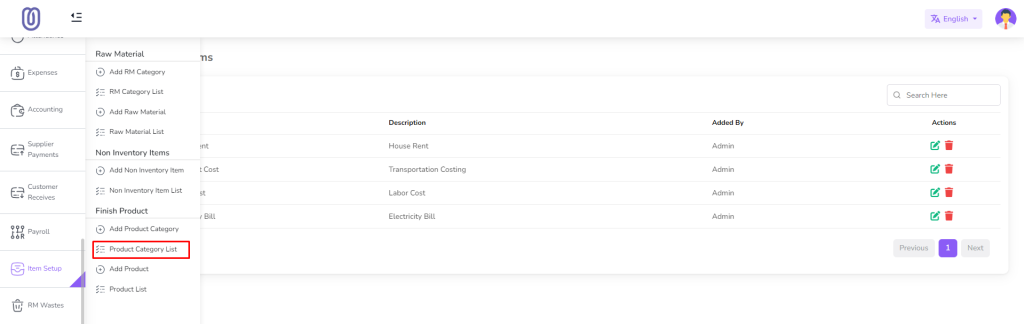
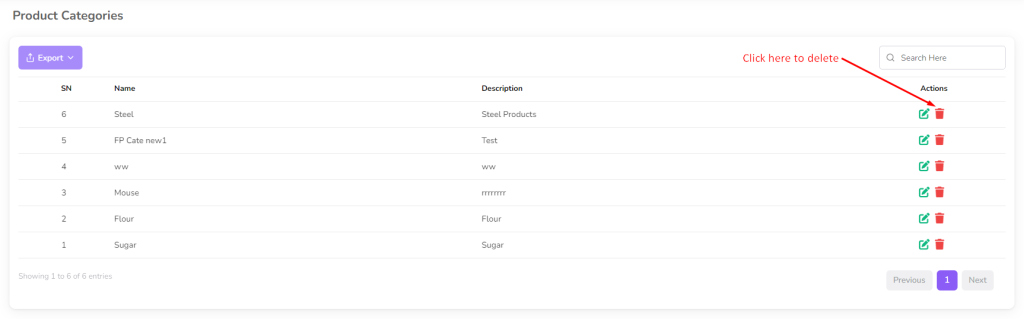
After clicking on “Product Category List”, you can view the Product Category list with Product Category details.

To add a new Product Category, click on the “Add Product Category” from the sidebar menu.

Fill the Product Category name and description and click on the “Submit” button to save the changes.

To edit the Product Category, click on the “Edit” button from the Product Category row.
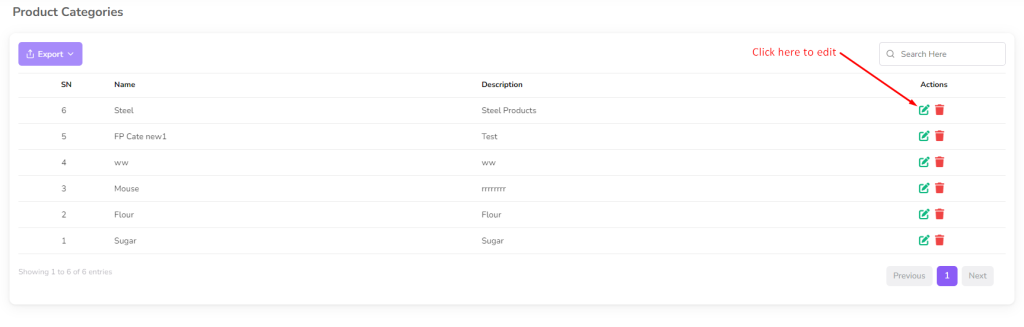
After clicking on the “Edit” button, you can edit the Product Category details and click on the “Submit” button to save the changes.

To delete the Product Category, click on the “Delete” button from the Product Category row.
Product
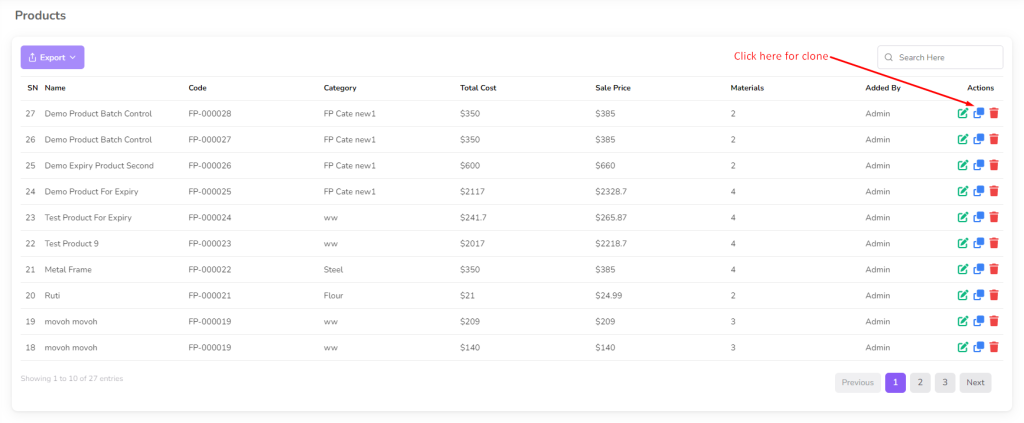
In this section, you can manage the Product. You can add, edit, and delete Product Inventory Item. Also you can clone the product.
To access the Product List, navigate to the “Item Setup” section and click on “Product List”.
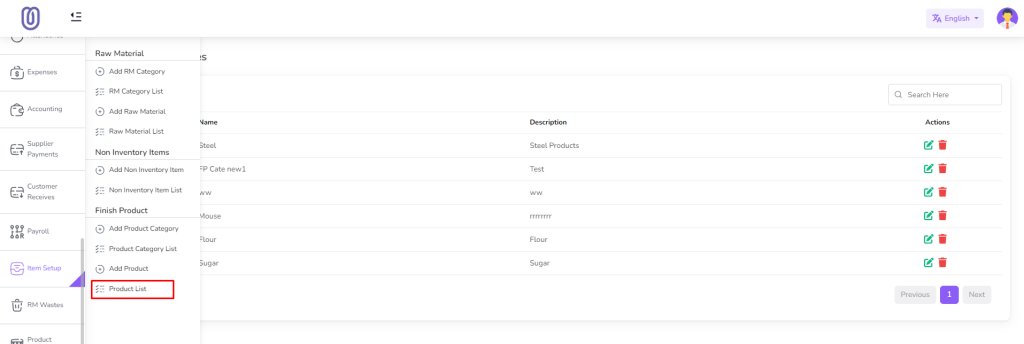
After clicking on “Product List”, you can view the Product list with Product details.

To add a new Product, click on the “Add Product” from the sidebar menu.

Add Raw Material for the product in dropdown. Select raw material from dropdown it will be added in cart. You can change Unit Price and Consumption. Also you can add multiple raw material.
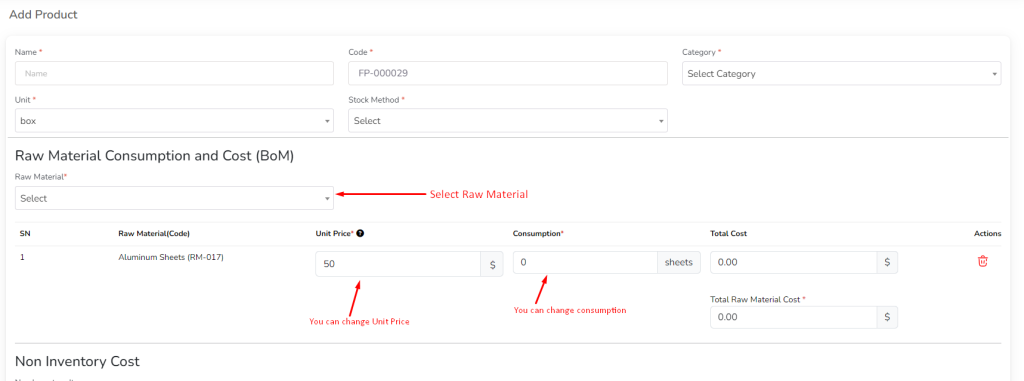
Add Non Inventory Item for the product in dropdown. Select non inventory item from dropdown it will be added in cart. Before Select Non Inventory Item you need to add Non Inventory Item in system. How to add Non Inventory Item click on this link. Also you can add multiple non inventory item.

Add Production Stage for the product in dropdown. Select production stage from dropdown it will be added in cart. You can change No. of month, days, hours and minute. Before Select Production Stage you need to add Production Stage in system. How to add Production Stage click on this link. Also you can add multiple production stage.

After that click on the “Submit” button to save the changes.

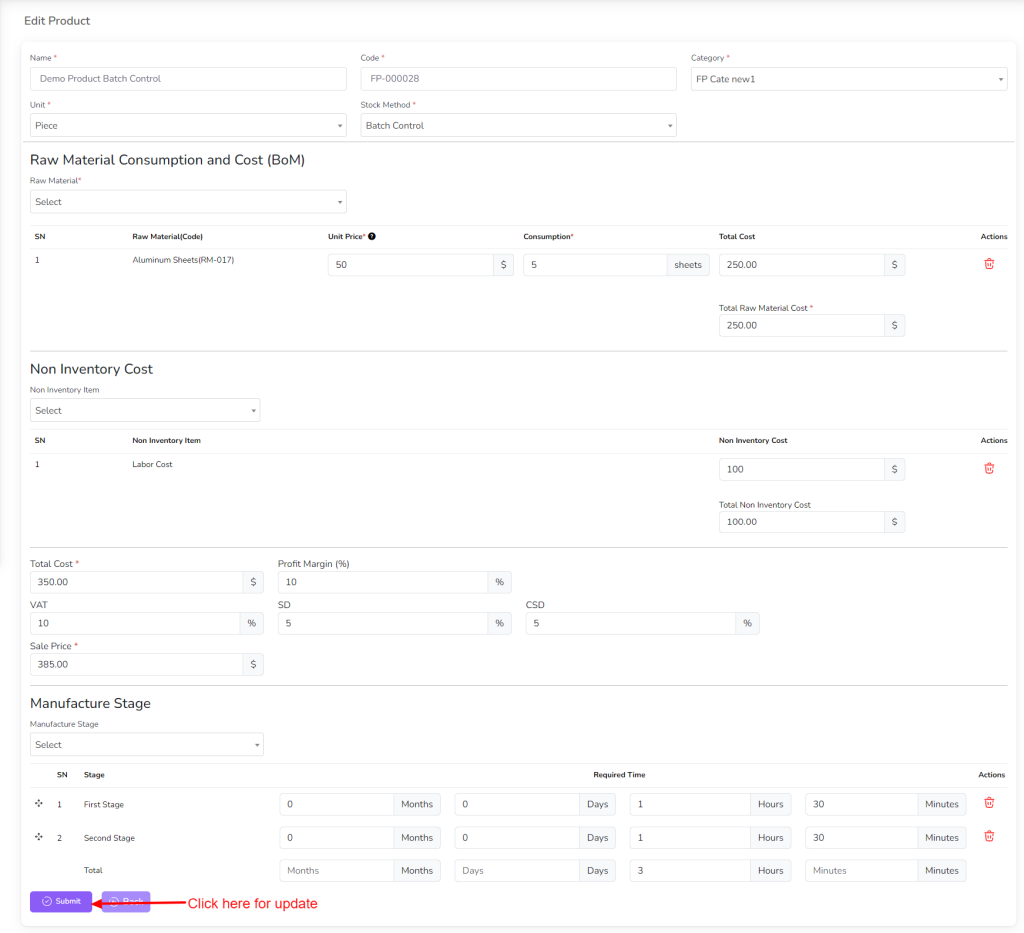
To edit the Product, click on the “Edit” button from the Product row.
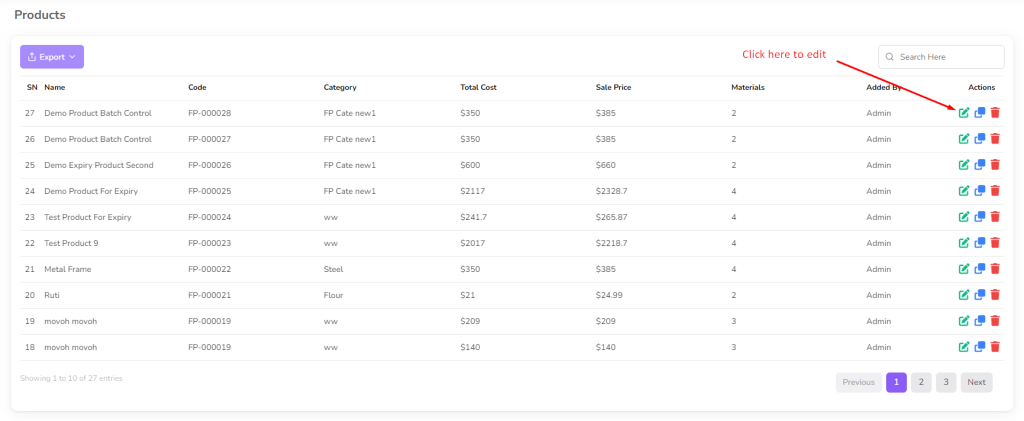
After clicking on the “Edit” button, you can edit the Product details and click on the “Submit” button to save the changes.
You can clone the product by clicking on the “Clone” button from the Product row.
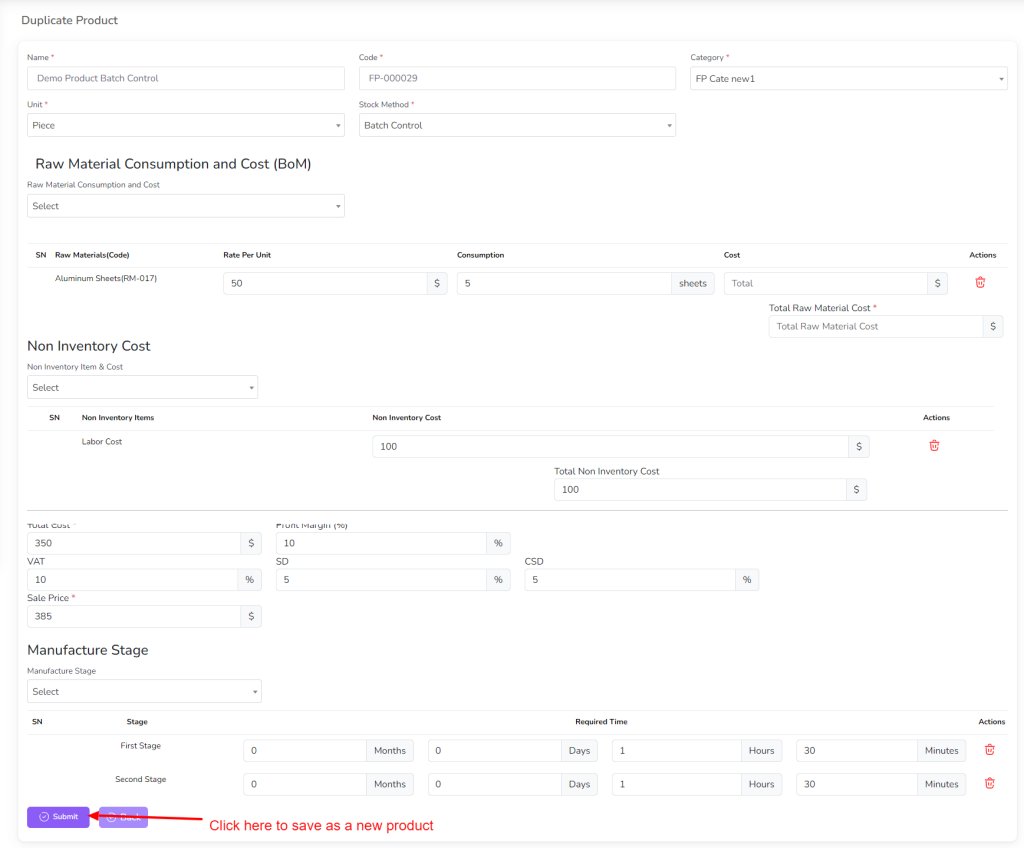
if need change the product details and click on the “Submit” button to save the changes.
To delete the Product, click on the “Delete” button from the Product row.
